Tours & Rates
Tour Inventory
Ready-made tours are browsed in Tours → Tour Inventory and created and edited in the Tour Manager — both described on Tour Manager. To schedule dated departures on a tour, use Operate → Tour Departures.
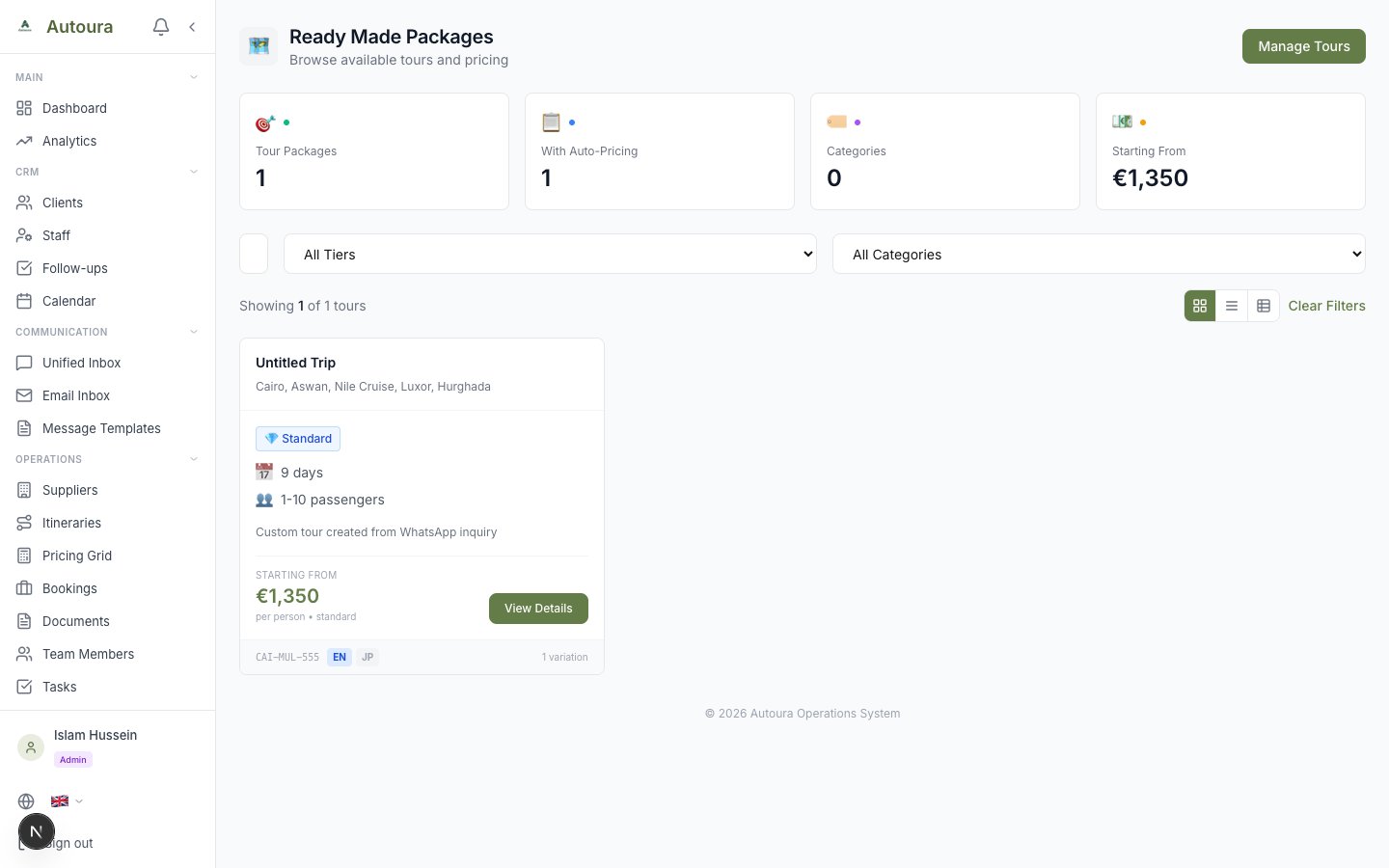
Tour Inventory page with tier and category filters and tour cards
Rates
Your buying rates live under Suppliers & Rates (admins and managers), in four groups — Accommodation, Transport & Tickets, Guides & Services, Costs — fourteen pages in all, with the Rates Hub above them.
| Page | What a rate holds |
|---|---|
| Hotels Accommodation | By city, tier and board basis. Prices are dated rate periods (up to six): per person in a double, single supplement, triple reduction — each for EU and non-EU passports — and optional room supplements (a view, a meal plan) with low, high and peak prices, offered in the Quote Builder under Hotel Services on that hotel’s nights. One hotel per city and tier can be starred Preferred. |
| Nile Cruises Accommodation | By ship and cabin, with the sailing lengths and days it runs, embark and disembark cities, meals and sightseeing, in dated periods. One preferred ship per tier. |
| Sleeping Trains Accommodation | By route and cabin: one-way and round-trip fares, a guide fare, times and season. |
| Hotel Services Accommodation | Porter, check-in and check-out help and the like, by hotel category; priced per group, per person or per unit. |
| Transportation Transport & Tickets | One route — a day tour, half day, airport or intercity transfer — with a rate and a passenger range per vehicle (your vehicle types). |
| Flights Transport & Tickets | Domestic and international fares by route, airline and cabin: base fare and tax, baggage, flight number and times, a guide fare. |
| Trains Transport & Tickets | Day trains by route and class, with a guide fare. |
| Airport Services Transport & Tickets | Meet & greet and other assistance, by airport (any IATA code) and direction; per group, per person or per unit. |
| Tour Guides Guides & Services | By language, grade (your own grades — the first is the default a quote asks for), city and day type (full day, half day, meet & greet), for a spot or a throughout guide. |
| Meals Guides & Services | Per restaurant, meal type, city and tier; one preferred restaurant per tier and meal. |
| Attractions Guides & Services | Entrance fees: one price, child and student discounts. An Add-on stays out of the automatic price; Sell as extra lets travellers add it after booking. |
| Activities Guides & Services | The Activities & Add-ons catalogue: per person, per unit (a boat for six), a flat price, or tiered by group size. |
| Tipping Costs | By role, context (day tour, cruise …), optional city and unit (per day, service, night, cruise or person). A city row wins over the any-city row. |
| Fixed Costs Costs | Per-person costs per sightseeing day. Pricing reads the water cost; your own row replaces the shared default. |
Adding and editing
Rates are added and changed on their own page: Add opens the form, the pencil edits a rate, Duplicate starts a new one from it. A rate can be switched off (Active) rather than deleted; the pages have search and filters, and a switch to show the inactive rates too. Most pages link a rate to its supplier — and, for hotels, ships and trains, to the supplier’s property.
Currency
Amounts are in your rates currency (Settings → Organization) unless a rate says otherwise: each form’s Rate currency lets one contract be entered in, say, EUR while the rest are in EGP. The amount is stored as you typed it; pricing converts it with your exchange rates.
EU and non-EU passports
Hotels and Nile cruises have separate prices for EU and non-EU passport holders. Every other rate has one price, used for both.
The Rates Hub
A read-only overview of your active rates in twelve tabs — Transport, Guides, Entrances, Hotels, Meals, Cruises, Sleeping trains, Trains, Flights, Airport and Hotel services, and Tipping — with stats, search and filters (city; category on Entrances; tier and property type on Hotels), and Export or Print of the tab you are on. Activities and Fixed Costs are on their own pages only. If a tab cannot be loaded, the hub says so rather than showing it empty.
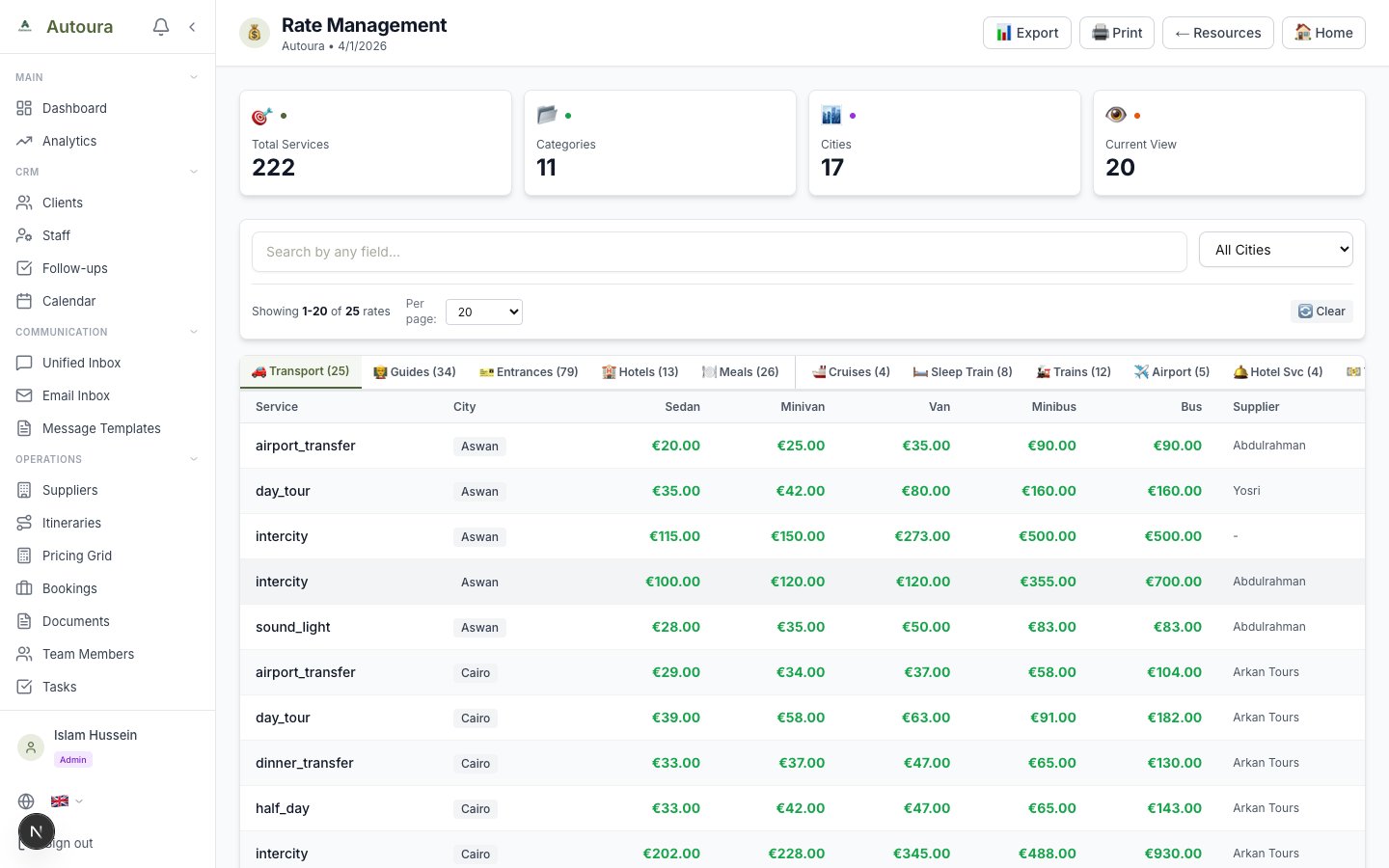
Rate Management page with stats cards, category tabs, filters, and the rates table
Importing rates from a spreadsheet
Every rate page has Sample CSV, Export CSV and Import CSV. Rate sheets that link a supplier carry a supplier code column (Tipping and Fixed Costs have none), so each rate re-attaches to its supplier; a code your agency does not have is reported and that row skipped. See Bulk Import (CSV).
Labels in your own words
The choices in the forms and the words in the tables — tiers, vehicles, cabins, meal and service types, seasons — come from your Vocabulary. Rename one there and every rate page reads it. The page and column titles themselves are fixed.