Clients
Your travellers, under People → Clients. The tour operators and agencies you sell to are kept apart, under Partners; your own staff are under Team Members.
Lead, Customer, Inactive, Blocked
Every client has a stage:
- Lead — has asked, nothing booked yet. A client created from an inbound email, a WhatsApp message or a concierge brief starts here.
- Customer — has booked at least once. The first booking moves a lead here by itself.
- Inactive and Blocked — set by hand on the Edit page.
The client list
Five counts sit at the top: Total Clients, Customers, VIP Clients, New (This Month) and Leads. Below them each client shows its name and code, contact, type and stage, lead source, number of bookings and revenue.
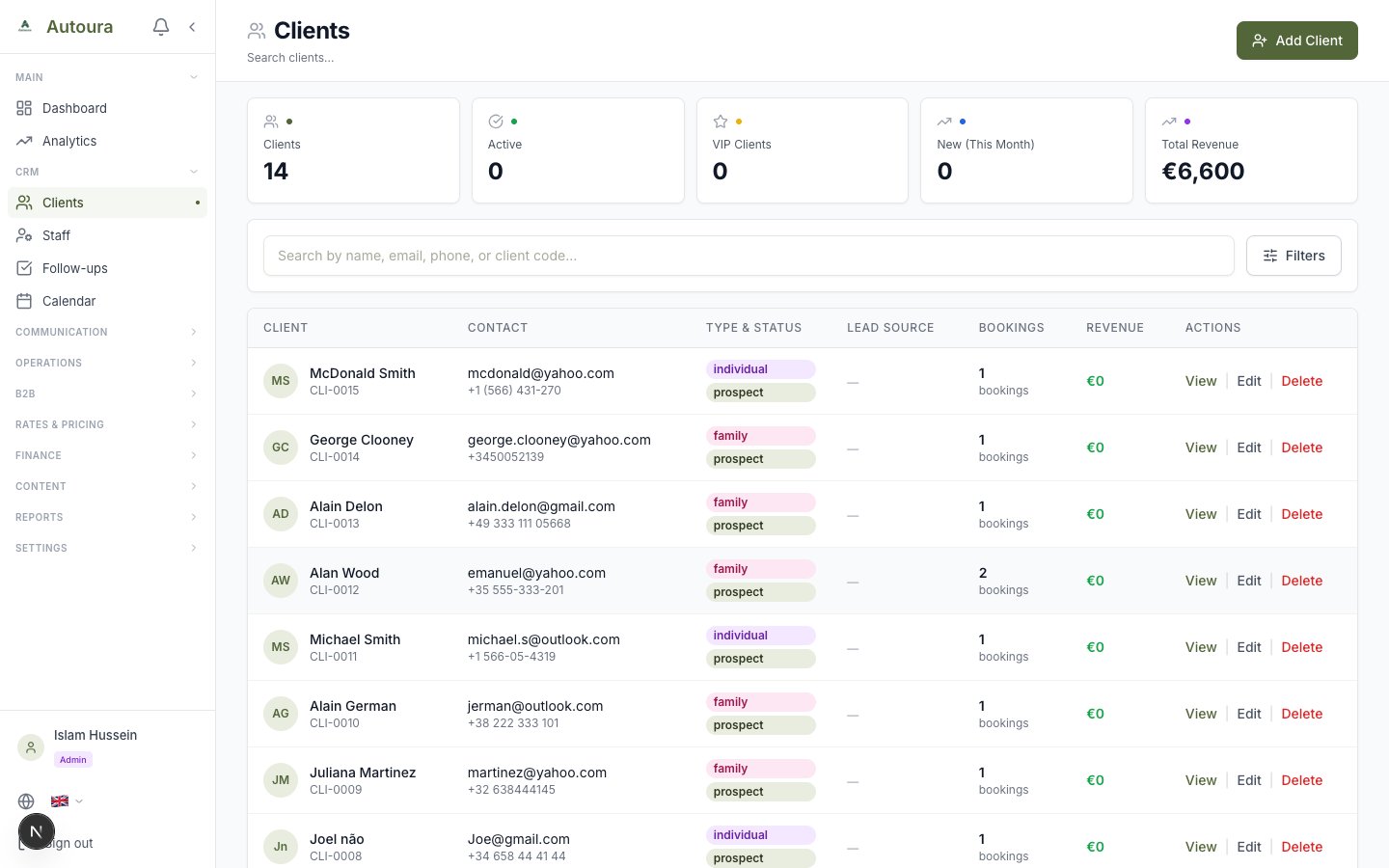
Client list with stats cards, search, filters, and columns for client, contact, type and status, lead source, bookings, and revenue
- Search matches name, email, phone or client code.
- Filters narrow by stage, client type, lead source, VIP, or the date the client was added. Clear resets them.
- Sort by most recent, oldest, name, revenue (high or low) or most bookings.
- Bookings counts the client’s bookings that are not cancelled. Revenue totals them in your agency’s currency; it shows — when a booking is in a currency that cannot be converted, rather than a total that leaves it out.
- Lead source is the one picked on the client. When none was picked, it is the source the client arrived through (WhatsApp, email, concierge).
Adding a client
New Client opens a five-step form. You can jump between steps or save from the last one.
- Basic Info — name, email, phones, nationality, passport type (Euro Passport or Other Passport, which decides the entrance-fee prices a quote uses), date of birth, language.
- Contact — preferred contact method, best time, timezone (your agency’s to start with), address.
- Preferences — accommodation level, dietary and accessibility needs, interests.
- Business — company, job title, whether they are a travel agent and their commission, preferred currency (your agency’s to start with).
- Classification — client type, VIP, lead source, marketing consents, tags, internal notes.
Only the first name is required — a lead from a phone call may have no surname or email yet. If it is missing when you save, the form goes back to step 1 and says so. An email that is not an email address is refused.
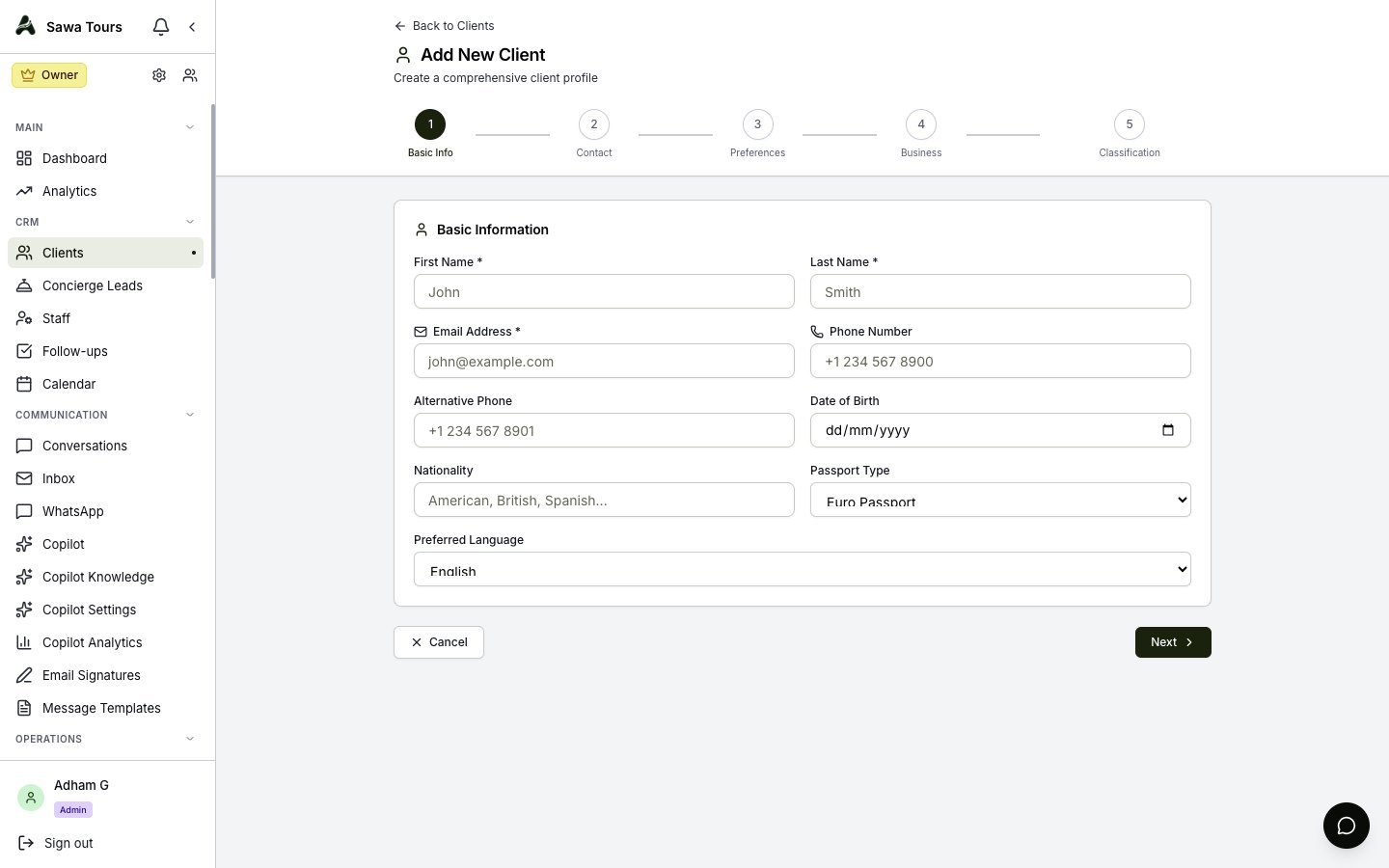
New Client wizard on the Basic Info step, showing First Name, Last Name, nationality, and passport type fields
The client profile
Click a client to open their profile. It has five tabs:
- Overview — their details, VIP, bookings, revenue and average booking value, interests and tags.
- Communications — the emails linked to them from the inbox, and the calls, meetings and messages logged with them.
- Trips — every itinerary for them, newest first, with dates, travellers and the trip’s total as the trip page shows it. New Trip opens the Quote Builder for them.
- Notes — internal notes, for your team only.
- Follow-ups — reminders linked to them; tick one off when done.
The quick actions — Log Communication, Add Follow-up, Add Note — are at the side of the Overview tab.
Screenshot: Client profile with the Overview tab
Editing and deleting
- Edit Client changes the details, stage, VIP, lead source, interests and tags. Renaming a client renames them everywhere — the list, the search and documents.
- Delete (on the list or the profile) removes the client with their notes, follow-ups, preferences and communication log. A client with trips, bookings, invoices, payments or email history cannot be deleted — the message says which. Their WhatsApp chat is kept and unlinked.
Who can do what
- Members, managers and admins add and edit clients.
- Managers and admins delete them.
- Viewers see clients and change nothing.