Concierge Leads
When a visitor chats with the AI Concierge on your website, the conversation is distilled into a structured planning brief and delivered straight to your team. The Concierge Leads page is where you triage those briefs and respond.
Before Your First Lead
The AI Concierge is switched on for your account by the Autoura team, who also connect it to your website. Until then the page stays empty: “No briefs in this view”. Ask the Autoura team if you expect leads and none arrive.
Overview
Open Concierge Leads in the sidebar — in the Communicate group, below Conversations, Inbox and WhatsApp. Briefs arrive automatically — there is nothing to import. The page is organized into tabs, each with its count:
- Needs Review (opens first) — New briefs nobody has picked up yet, and briefs the visitor has since updated (an update reopens the lead)
- In Progress — Briefs someone is actively working
- Responded — Briefs you have answered
- Archived — Briefs you have set aside
- All — Everything in one list
The page shows the 200 most recent briefs. The counts reflect the list as it was loaded — refresh the page to see briefs that arrived since.
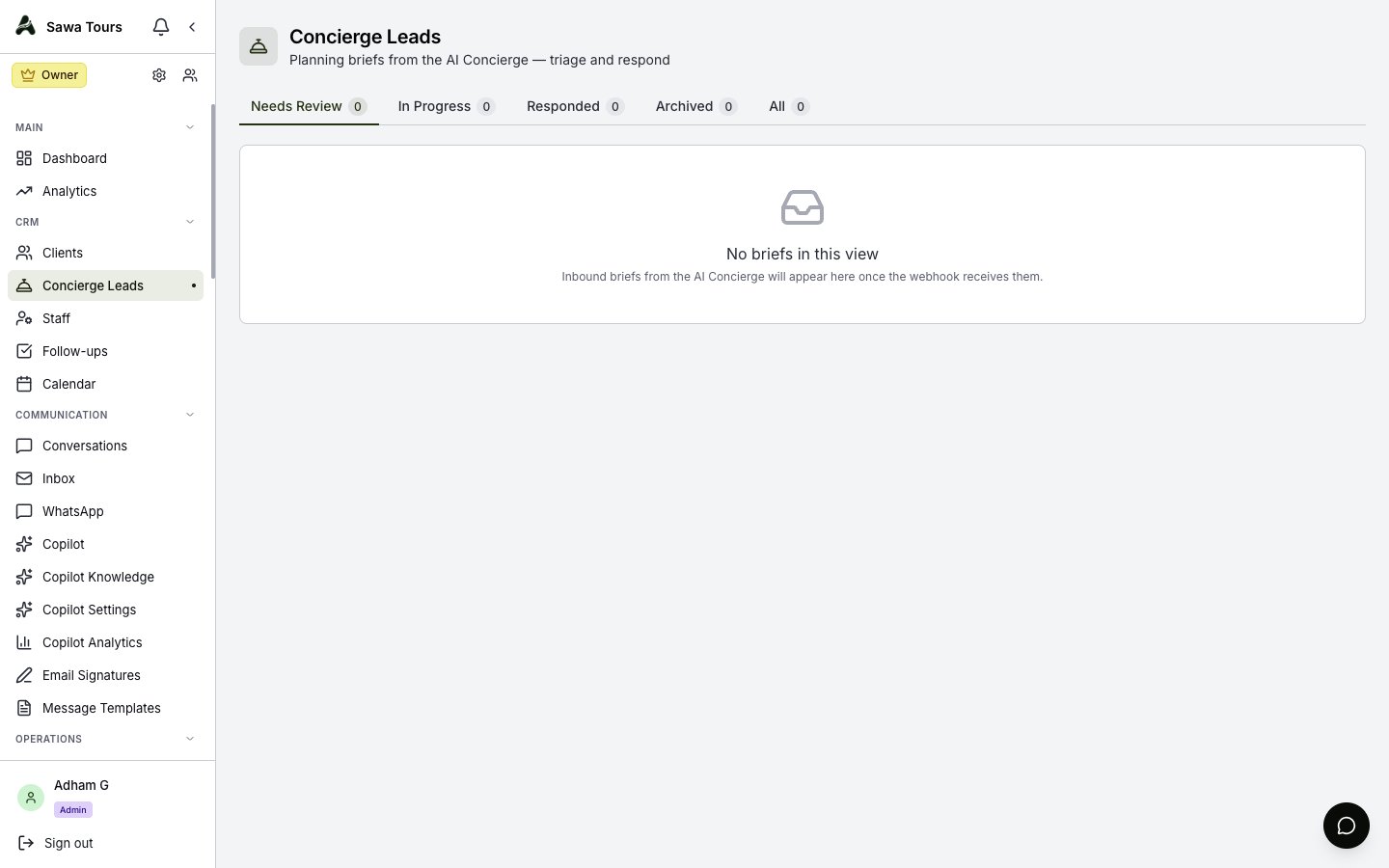
Concierge Leads page with the Needs Review / In Progress / Responded / Archived / All tabs and their counts, and a list of brief cards
When a Lead Arrives
- Everyone on the team gets a bell notification — “New concierge lead from …”, or “Concierge lead updated: …” when a visitor revises their brief — and a push notification if they turned push on
- The sidebar shows a badge with the number of leads waiting for review, and a “New concierge lead” message pops up on other pages
- The visitor is found among your clients by email, then phone — or added as a new Lead — and their interests, special needs and an internal note with the brief are added to the client
- The brief also appears in Copilot, so a reply can be drafted on the visitor’s preferred channel
No email is sent for a new lead.
Reading a Brief Card
Each card summarizes a brief at a glance:
- Visitor & Status — The visitor’s name (or “Concierge Lead”) and a status badge; a red No contact badge when the visitor left neither email nor phone, and rev 2, rev 3… when they updated their brief
- Response deadline — Overdue 3h in red once the committed response time has passed; Due in 45m in amber when 2 hours or less remain, or in green with more time. It disappears once the lead is responded or archived.
- Contact Details — Email and phone, and when the brief was received
- Trip Facts — Travelers, dates (or a travel window, or a number of days), destinations, and comfort level
- Summary & Chips — A short summary plus chips for interests and any dietary, mobility, religious, or medical constraints
- Details opens the full brief; Client opens the visitor’s client record
Screenshot: A single brief card showing visitor name, status and deadline badges, contact details, trip facts (travelers, dates, destinations, comfort level), summary, interest chips, and constraint chips
Moving Briefs Through the Flow
Each status offers the next steps on the card and in the details drawer:
- Needs review → Start review or Archive
- In progress → Mark responded or Archive
- Responded → Reopen (back to Needs Review) or Archive
- Archived → Reopen, or — for managers and admins — Delete
Delete (Delete permanently in the drawer) removes an archived lead and its conversation for good; the client record stays in Clients. Only an archived lead can be deleted.
The Details Drawer
Click Details on a card to see everything the Concierge captured. The header repeats the status, deadline and No contact badges (a green Responded once answered), with the summary below:
- Contact — Email, phone, preferred channel, timezone, nationality, and language
- Trip — Travelers, dates, origin city, and international flights
- Preferences — Comfort level, destinations, interests, must-see and must-avoid
- Constraints — Dietary, mobility, religious, and medical needs (when there are any)
- Response window — Committed by in your own local time, the Cairo and visitor times the Concierge stated, and when it was received
- Transcript — The full Concierge conversation as chat bubbles
- Meta — The conversation reference, revision and flags
Screenshot: Details drawer open on a brief: contact, trip, preferences, constraints, response window, and the chat transcript rendered as bubbles
Turning a Brief into an Itinerary
The drawer footer reads No itinerary yet with a Create itinerary button. It creates a draft itinerary (code CON-…) for the visitor’s client, filled from the brief: the trip name from its destinations, the dates, the number of travelers, and the summary in the notes. Where the brief is missing something it uses placeholders — a start 30 days from today, 7 days, 2 adults — so check them. The days themselves are not planned yet.
It is safe to click once — it will not create duplicates, and afterwards it becomes View itinerary (CODE) linking to the itinerary it created. View client opens the visitor’s client record.
Screenshot: Details drawer footer showing the Create itinerary button (and the View itinerary state after creation) plus the View client button
From there, continue in Itineraries to plan the days and price the trip, and use Communication to reply to the visitor on their preferred channel.
Who Can Use It
Admins, managers and members see Concierge Leads; viewers do not. Only managers and admins can delete a lead.