Tasks, Departures & Capacity
Three tools in the sidebar's Operate group: Tasks and Tour Departures for managers and admins, and the Capacity Calendar for admins.
Tasks
The team's to-do board. Three views, by the icons at the top right: Kanban (the default, columns To Do, In Progress and Done), Table and List.
- Cards — Total, To Do, In Progress, Done, Overdue, Due Today, High Priority (high and urgent) and Archived, across all tasks
- Search tasks…, the quick filters Overdue, Due Today and This Week (the next seven days), and Filters for status, priority, who it is assigned to and due date
- Table sorts by title, status, priority, due date or assignee; Table and List show 10 to 100 per page
- Overdue tasks are tinted red; a task due today has an amber date
Adding a Task
+ Add Task asks for a Title, Description, Due Date, Priority (Low, Medium, High, Urgent), Assign To, Link To (a client or itinerary from a list; an invoice or expense by its ID) and Notes. A new task starts in To Do. The person it is assigned to is notified in the app and by email, with the due date — and again if it is reassigned to someone else.
Working Through Tasks
- Start, Complete and Reopen on a card; Mark Complete in the table; in List, click the status icon
- Archive puts any task away; Archive Done archives every finished one at once. Show Archived shows them, and Unarchive brings one back.
- Delete removes a task for good, after asking
- The person assigned is reminded the day before a task is due, and again while it is overdue (every three days), as your notification settings allow
- When a task someone else created is completed, they are told (their Task Completed setting decides how)
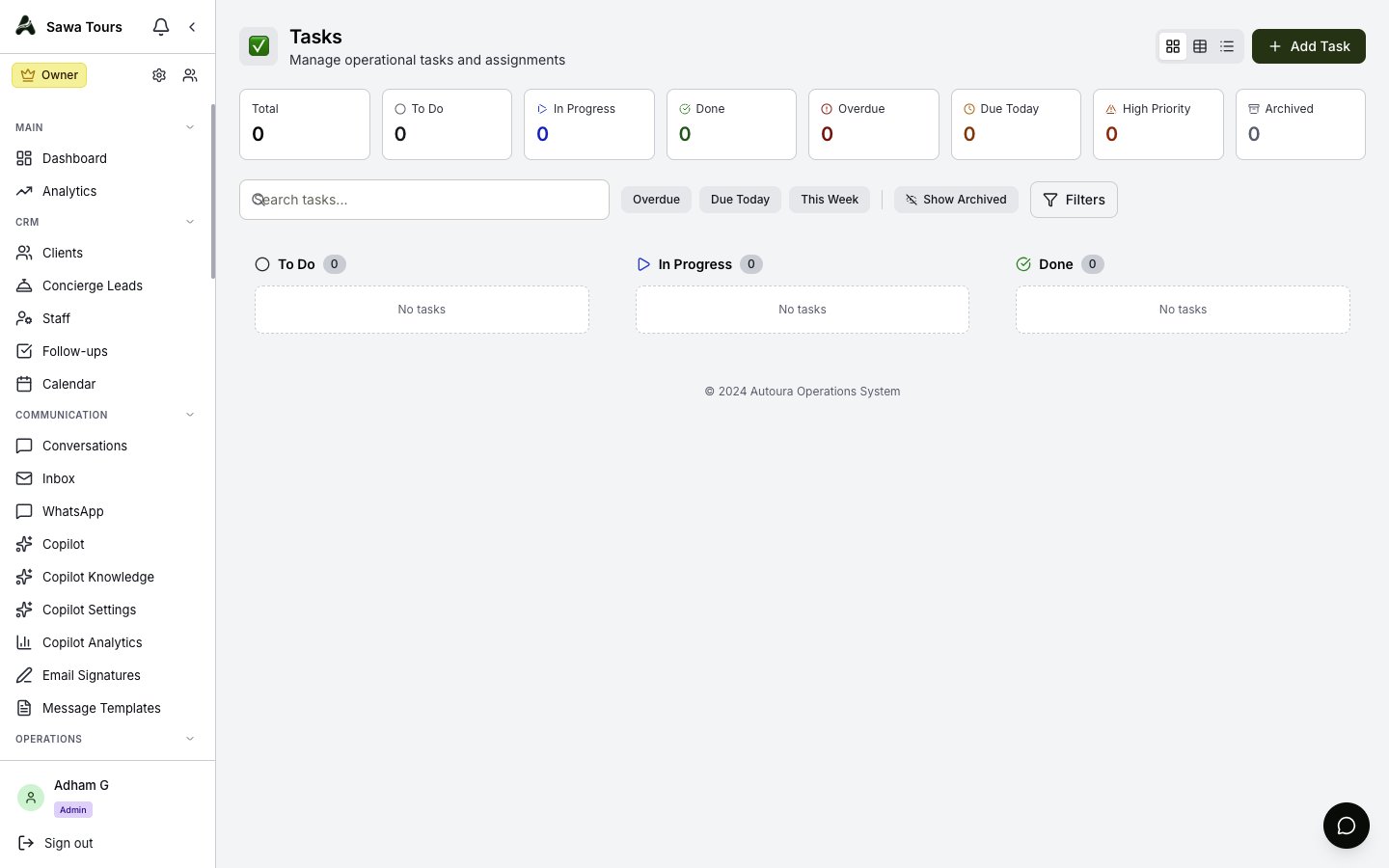
Tasks page in Kanban view with metric cards across the top, the filter bar, and the To Do / In Progress / Done columns
Operations Tasks from a Trip
On an itinerary, the Tasks card (Create tasks / Sync tasks) or ⋯ → Operations tasks turns the trip's services into one task per kind — Accommodation, Flights, Transportation, Guides, Airport services, Hotel services, Meals, Entrance tickets, Other services — each for the department that books it:
- Each is due a set number of days before the trip (two weeks for hotels and flights, a week for transport and guides, fewer for the rest), and goes to the person you pick for each department
- The task holds a Checklist: day, date, city, service and supplier for each line, with a box to tick and the supplier's confirmation number. Its status follows the ticks.
- Sync tasks after the trip changes: new lines are added, ticks and confirmation numbers are kept, and a line that left the trip is marked “No longer on the itinerary — cancel this booking” until you mark it Cancelled
- Kinds with no department set up are skipped, and said so
Tour Departures
Scheduled group departures — a tour on a date that travellers join. The list opens on Upcoming; the filter also offers All, Open, Limited, Full, Guaranteed and Cancelled, and Search tours… finds a tour by name or code. Each row shows the tour, its date and length, booked/max (N left) with a bar (yellow from 80%, red when full), the price per person, and its status.
- Status — change it from the row. As bookings come in it turns Limited at 80% and Full at 100% by itself, and Guaranteed once a guaranteed departure reaches its minimum.
- Clone — the same tour on a new date
- Delete — only while it has no pending or confirmed bookings
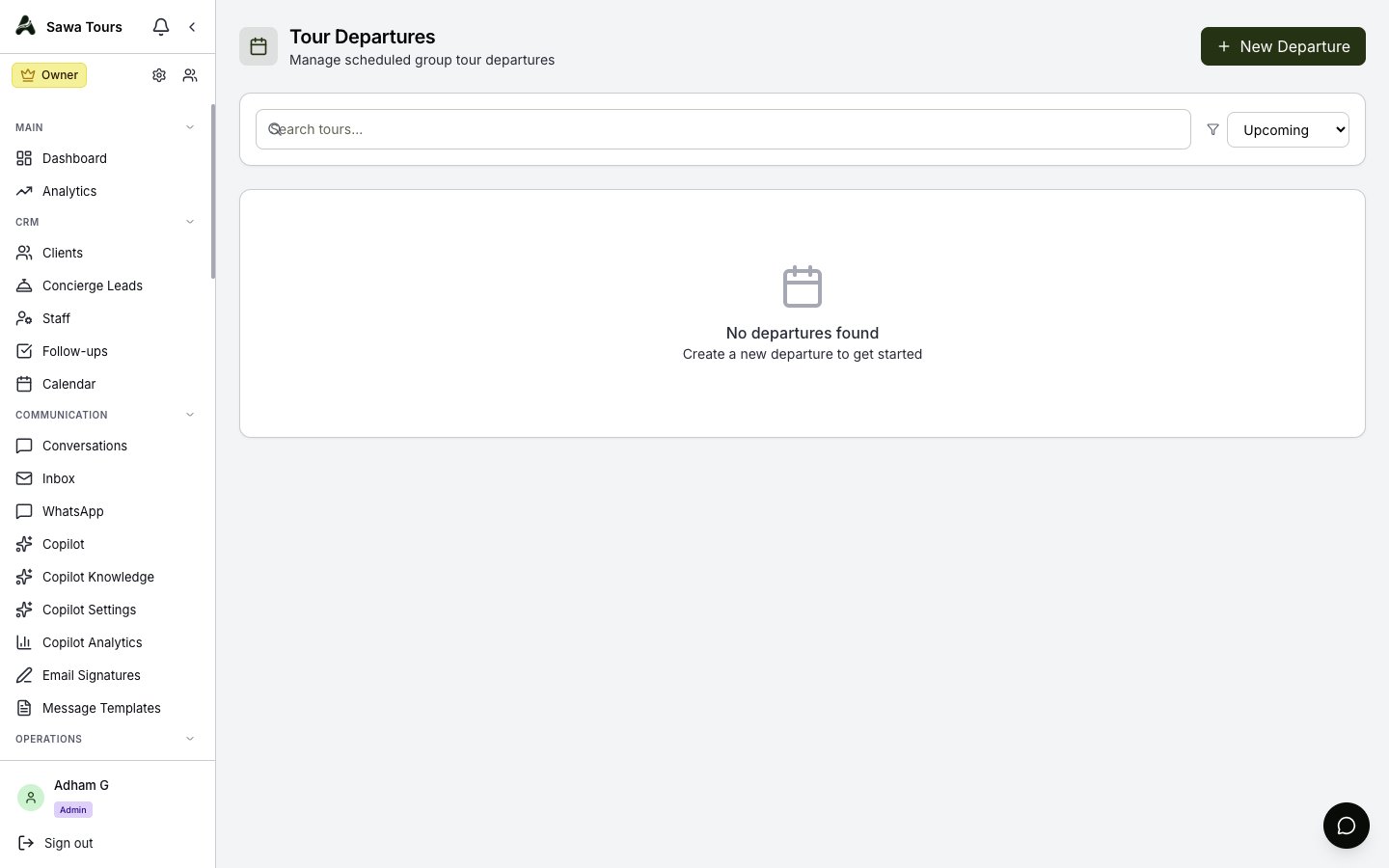
Departures list with rows showing status badges, booked/max capacity with spots remaining, occupancy bars, and price per person
New Departure asks for the Tour Template (or a Tour Name and Duration without one), the Start Date, Max Pax and Min Pax, the Price per Person, and the Status: Draft (not visible) or Open (accepting bookings). One departure per tour per date.
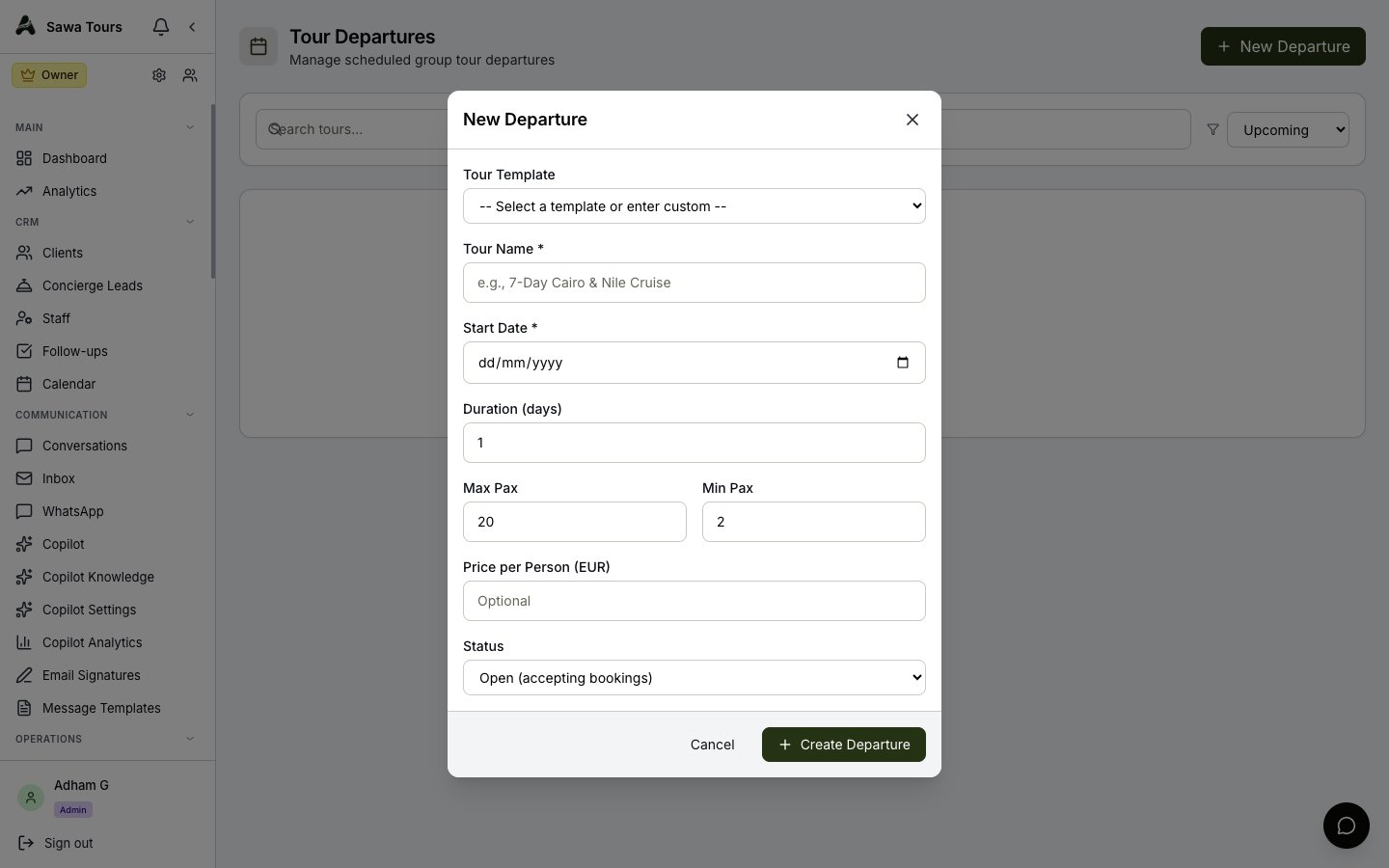
New Departure modal showing template, name, start date, duration, max/min pax, price per person, and status fields
Capacity Calendar
A month calendar of how much you can take on each day, read by the WhatsApp AI. Two views: General Capacity and Tour Departures.
General Capacity
- Click a date (today or later). Quick Status sets it Available, Limited, Busy or Blackout.
- Edit Capacity sets its Max Groups, the groups Booked outside Autoura (your bookings here count by themselves: each live booking counts on every day from its start to its end), a Reason for a blackout, and Notes
- Default Settings — the limit for any day without its own entry; Save keeps it. Blank means no limit.
- A booking that would go over a day’s limit, or fall on a Blackout day, is refused with the days named — from a quote or by confirming an itinerary (the itinerary is still confirmed). A manager or admin can Book anyway.
- Changed dates are marked; Save N Changes saves them all. Leaving the page before saving loses them.
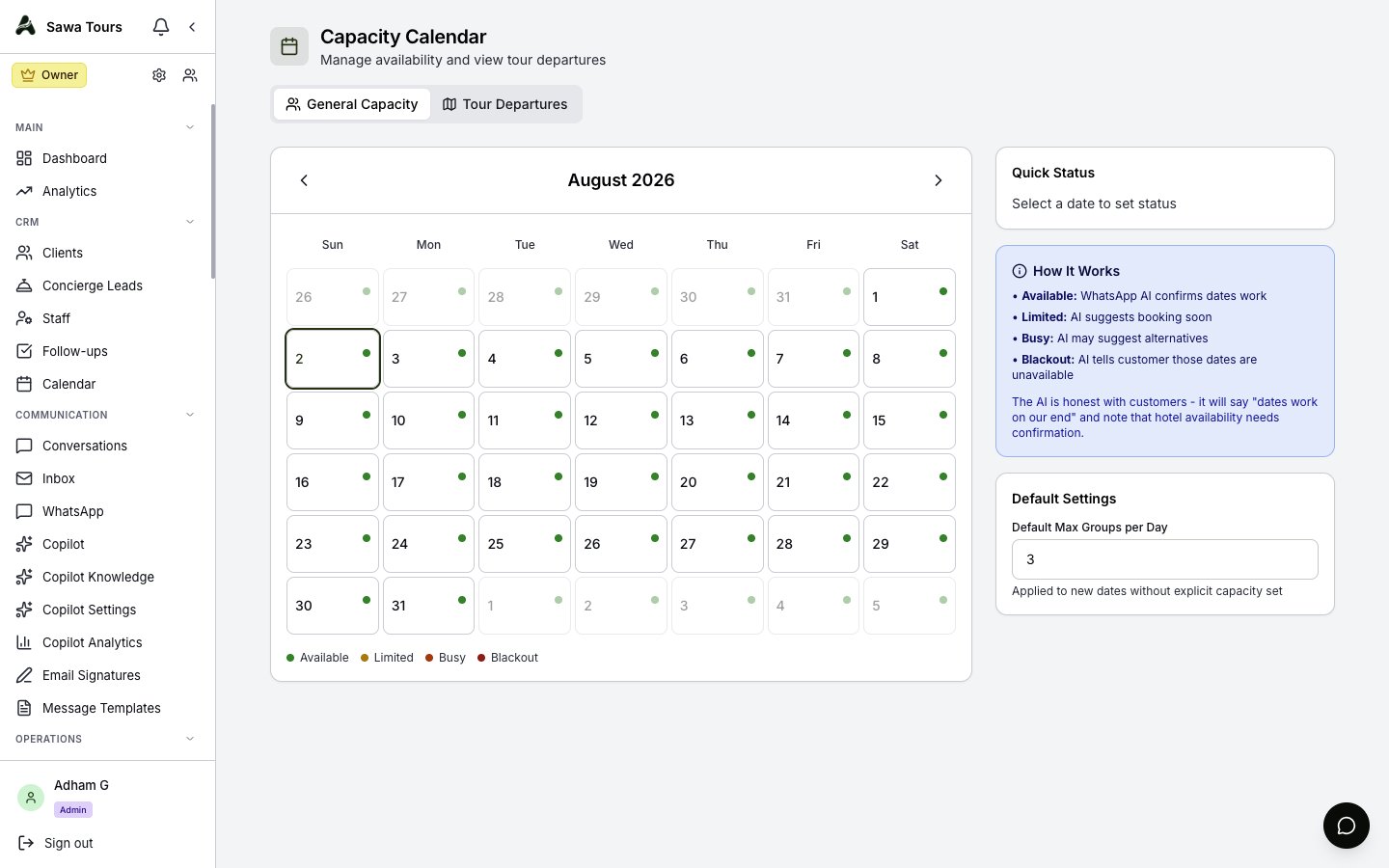
Capacity calendar in General Capacity view showing a month with date statuses (available/limited/busy/blackout) and per-date capacity settings
Tour Departures
Pick a tour or an itinerary from Select a tour or itinerary…. For a tour, the calendar shows its departures in the month, with the days each one runs; click a date for Departures on … with the seats booked and left. For an itinerary, it marks the trip's start and each of its days.