Follow-ups & Reminders
Two separate tools keep you on schedule: Follow-ups are your own commitments to a client (a call, a quote, a feedback request), and Payment Reminders are the emails that chase unpaid invoices.
Scheduling a Follow-up
A follow-up belongs to a client. Open the client and click Add Follow-up — in Quick Actions on the Overview tab, or on the Follow-ups tab. In Add Follow-up:
- Follow-up Type — Phone Call, Email, WhatsApp Message, Meeting, Send Quote, Booking Confirmation, Payment Reminder, Request Feedback, or Other. It becomes the follow-up's title, with the client's name.
- Due Date — a day, today or later
- Priority — Low, Medium or High
- Notes (Optional) — any details or context
- Click Schedule Follow-up
The client's Follow-ups tab lists all of them, done ones included. The pencil on a pending one opens Edit Follow-up (Update Follow-up, or Delete), and Mark Complete closes it. A client with overdue follow-ups shows a red alert at the top of the profile, and follow-ups appear in the client's timeline.
The Follow-up Dashboard
Follow-ups in the sidebar (Operate) opens the Follow-up Dashboard of everything still pending. It opens on today's:
- Due Today, This Week (the next seven days), Overdue and All Pending — click one to show it
- Filters by priority and by type (Phone Call, Email, WhatsApp, Meeting, Send Quote)
- Each follow-up — the client (click to open), priority, type, due date (marked Today or Overdue), notes, and the client's phone and email to call or write
- Complete, Snooze 1 day or Snooze 1 week (from today), and Delete
New follow-ups are made from the client, not here. A follow-up is overdue once its day has passed — there is no status to set. With nothing to show: “All Caught Up!”
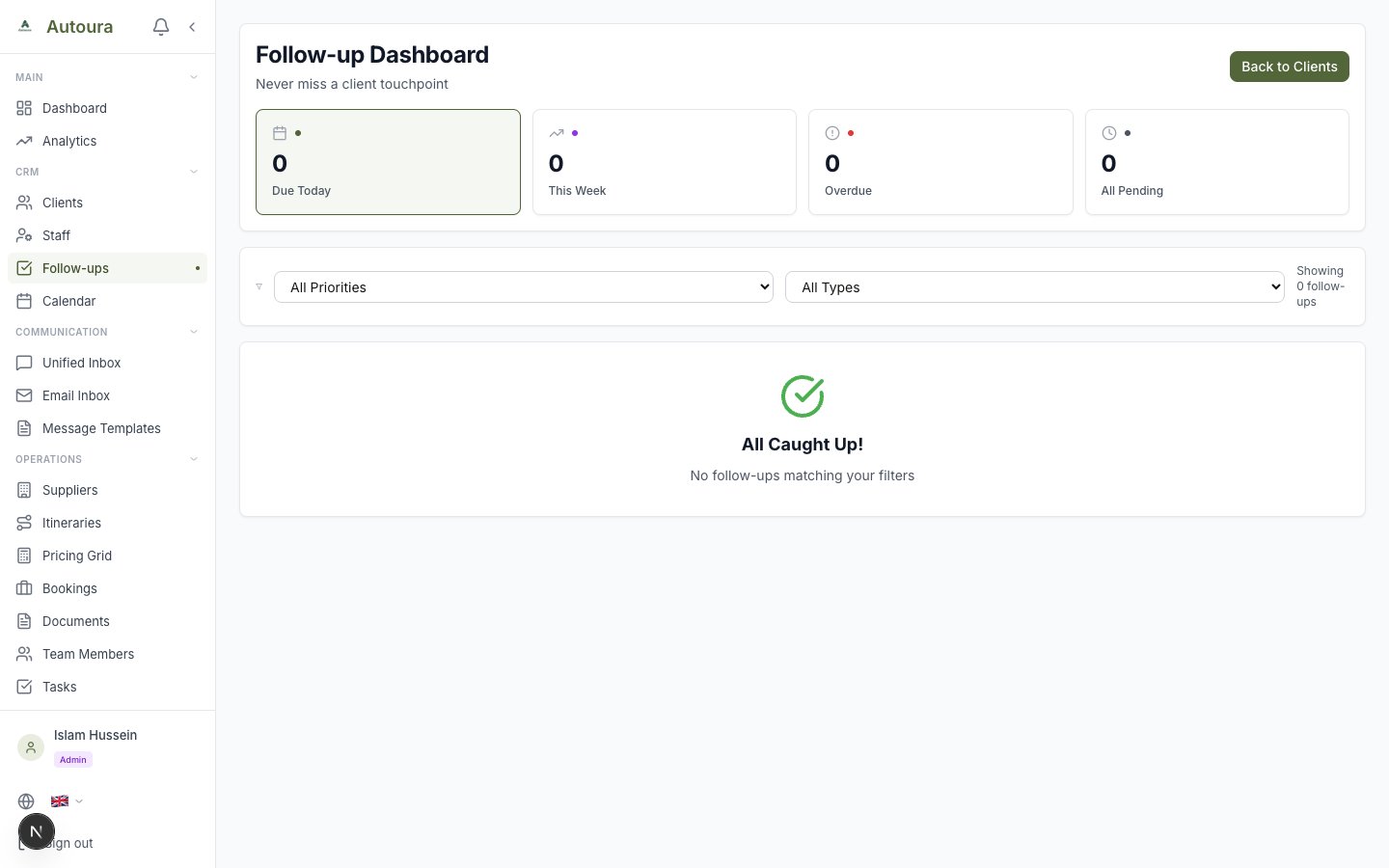
Follow-up Dashboard with Due Today, This Week, Overdue, and All Pending stat cards and the pending list
Payment Reminders
Payment Reminders email clients about unpaid invoices. The page has no sidebar entry: open an invoice and click View All on its Reminder History card.
Which Invoices, and When
An invoice is reminded while it is Sent, Viewed, Partially Paid or Overdue, has a due date and a balance, and the client has an email. Once a day:
- The first reminder goes 7 days before the due date — or straight away, for an invoice already closer to its due date or past it
- Then one every 7 days until the invoice is paid, paused, or no longer awaiting payment. A reminder that fails to send is tried again the next day.
- The email's wording follows where the invoice stands: upcoming, due, overdue, and — long overdue — urgent
Reminders are emails, sent from your company's address with replies going to your contact email. The days follow your company's time zone (Settings).
The Pending Tab
- Pending, Overdue, Due Soon (within 7 days), Paused and Selected
- Each invoice: client, balance, due date, the next reminder's type, how many have been sent, and Active or Paused
- Send Reminder sends one now; the next automatic one is then a week later
- Pause Reminders / Resume Reminders stops and restarts them for that invoice; a paused one is left out of bulk sends
- Select All Active, then Send Selected — or Send All Active — and the result says how many were sent and how many failed
The History Tab
Every reminder sent or attempted: date and time, invoice, recipient, type, Sent or Failed (with the reason), and subject. Show All Reminders, Sent Only or Failed Only; Load More shows older ones. Each invoice's own reminders are also on its Reminder History card.
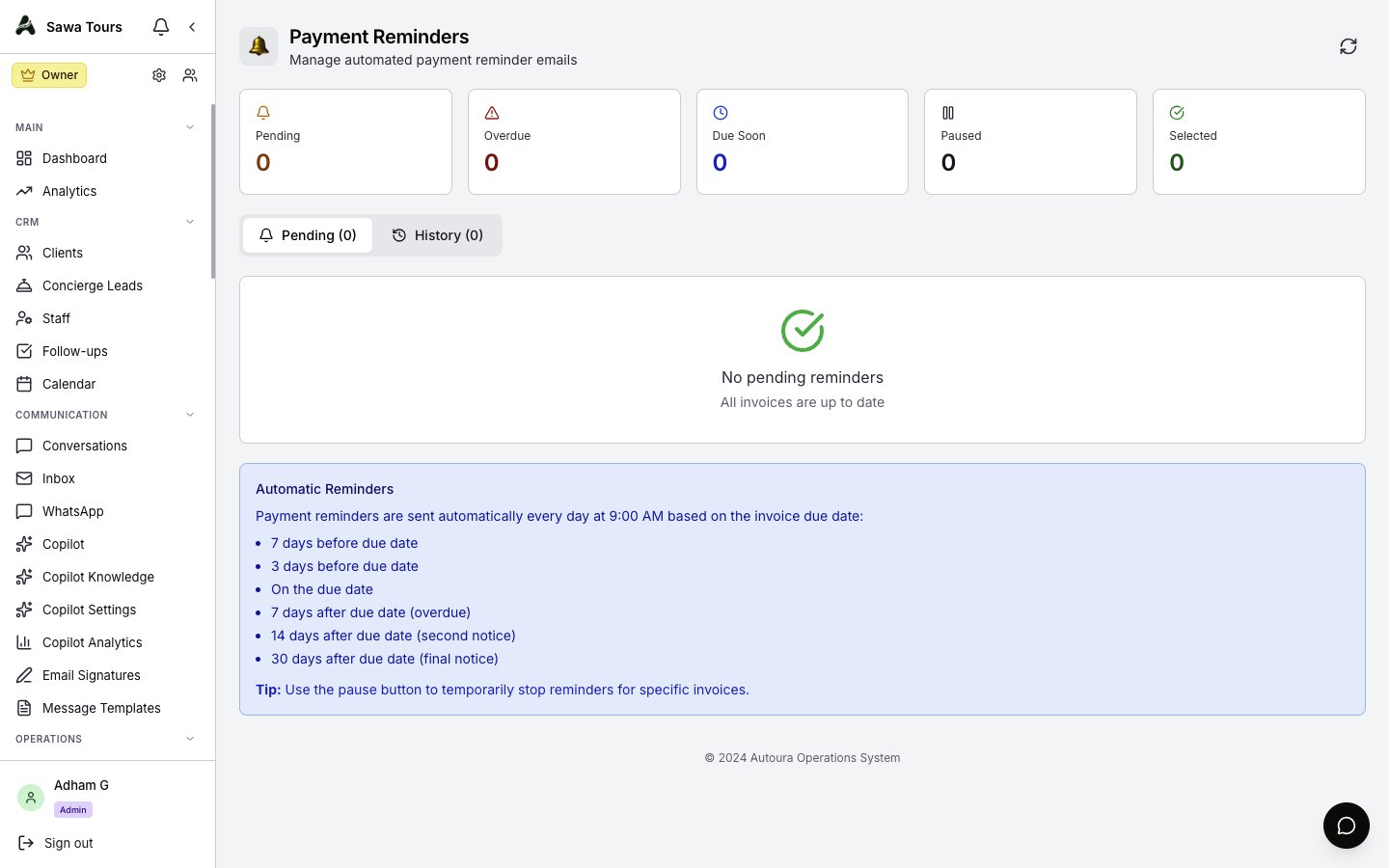
Payment Reminders page with Pending/History tabs, stat tiles, and batch-send selection