Expenses & Commissions
What a trip costs you, and the commissions you earn or owe on it. Both feed each trip’s Profit & Loss.
Adding an expense
On Expenses, click Add Expense — or on a trip, Add expense, which links it to that trip. Then:
- Category — one of 21: Tour Guide, Driver, Hotel/Accommodation, Nile Cruise, Transportation, Flights, Entrance Fees, Meals, Activities & Tours, Airport Staff, Hotel Staff, Ground Handler, Tipping, Permits/Permissions, Toll Fees, Parking, Fuel, Office Expenses, Marketing, Software/Subscriptions, Other.
- Supplier — for categories paid to a supplier, pick one of your suppliers that fills that role (your restaurants for a meal, your hotels for a hotel); otherwise type a name. The supplier type is set from the category.
- Amount (above 0) and currency — every supported currency, starting from your agency’s.
- Expense date, description and notes.
- Trip — optional; link it so the cost counts in that trip’s P&L.
- Receipt link — a web link (http or https) to the receipt, e.g. in Google Drive. Receipts are not uploaded into the app.
- Status — Pending, Approved, Paid or Rejected. Once Approved or Paid, the payment method (Cash, Bank Transfer, Credit Card, PayPal, Company Card), date and reference appear. A Paid expense with no payment date gets today’s.
Click Add Expense (or Update Expense when editing).
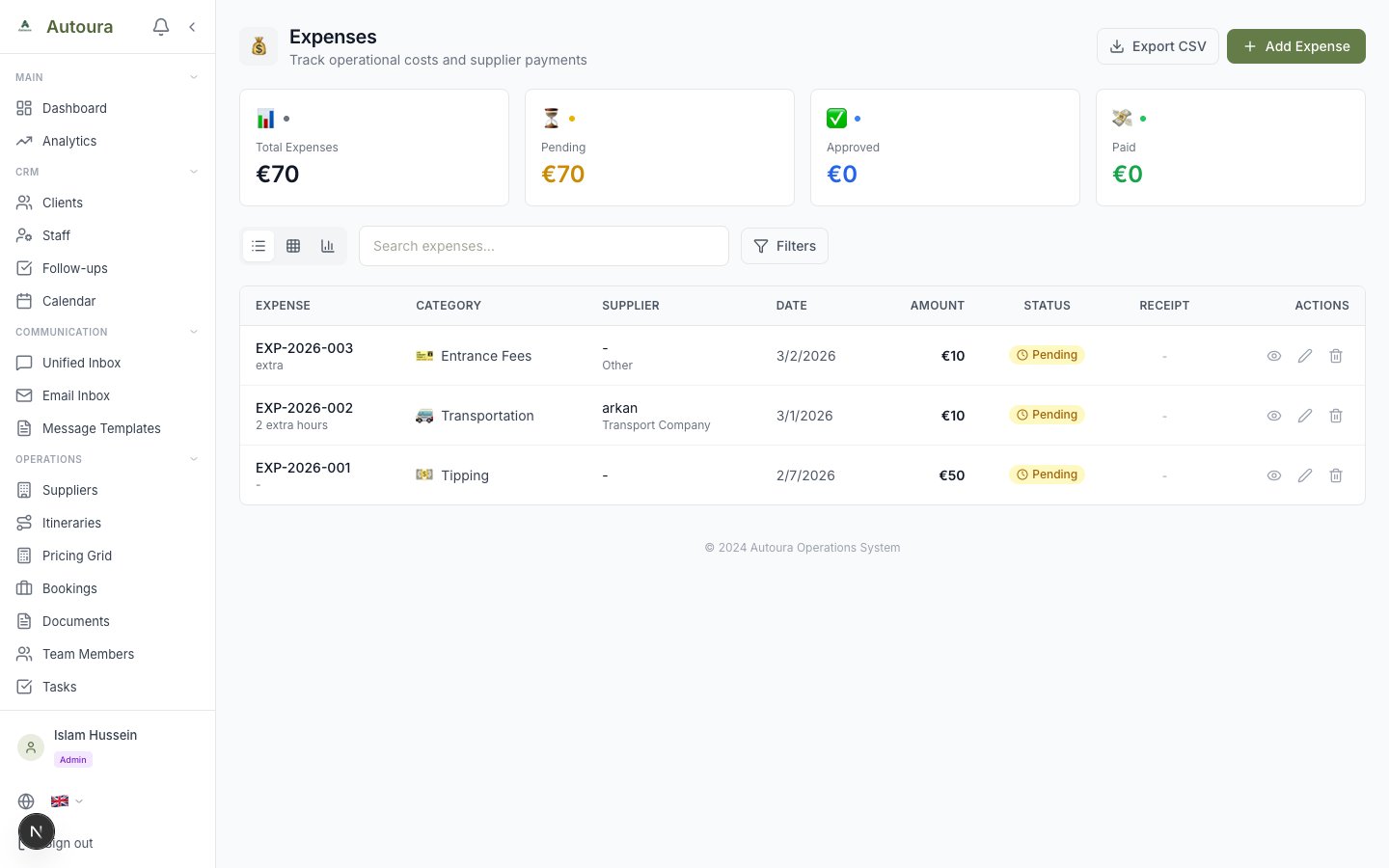
Expenses page with add expense form, filters, and expense list
Managing expenses
- Filters — search, status, category, supplier type and a date range.
- Views — a list, a grid, and a chart of spend per category (per currency).
- Mark as paid — on an approved expense in the list. A pending one is approved first.
- Export CSV — the list as it is filtered, ready for Excel (non-Latin text included).
- The expense page — click an expense for its details, its trip, and the link to its receipt; Edit opens the form.
Who can do what
- Members add and edit expenses (on their trips, or on the Expenses page).
- Managers and admins approve, pay, reject and delete them, and have Commissions.
- Viewers see neither.
Commissions
- Receivable — commission paid to you, e.g. by a hotel or a shop for the guests you bring.
- Payable — commission you owe, e.g. to an agent or a partner who sold the trip.
Generated from a trip
On an itinerary, Generate commissions creates them from its services and their suppliers’ commission settings: a supplier who pays you is a receivable on what the service costs from them; a supplier you pay is a payable on your profit on the service; and a service marked as sold by someone pays that seller their rate of your profit. A service is generated once — running it again adds nothing. Services that cannot be worked out (no rate, no cost, no profit) are listed with the reason.
Added by hand
- On Commissions, click Add Commission.
- Choose Receivable or Payable and a category: Hotel, Shopping, Restaurant, Transport, Cruise, Attraction, Optional Tour, Activity, Show/Event, Spa/Wellness, Agent Referral, Partner or Other.
- Enter the base amount and rate — the amount is worked out — or the amount itself, and its currency (your agency’s to start with).
- Link a supplier and a trip if you like; set the dates, the source and the status: Pending, Invoiced, Received, Paid, Cancelled or Disputed.
Every field can be changed with Edit.
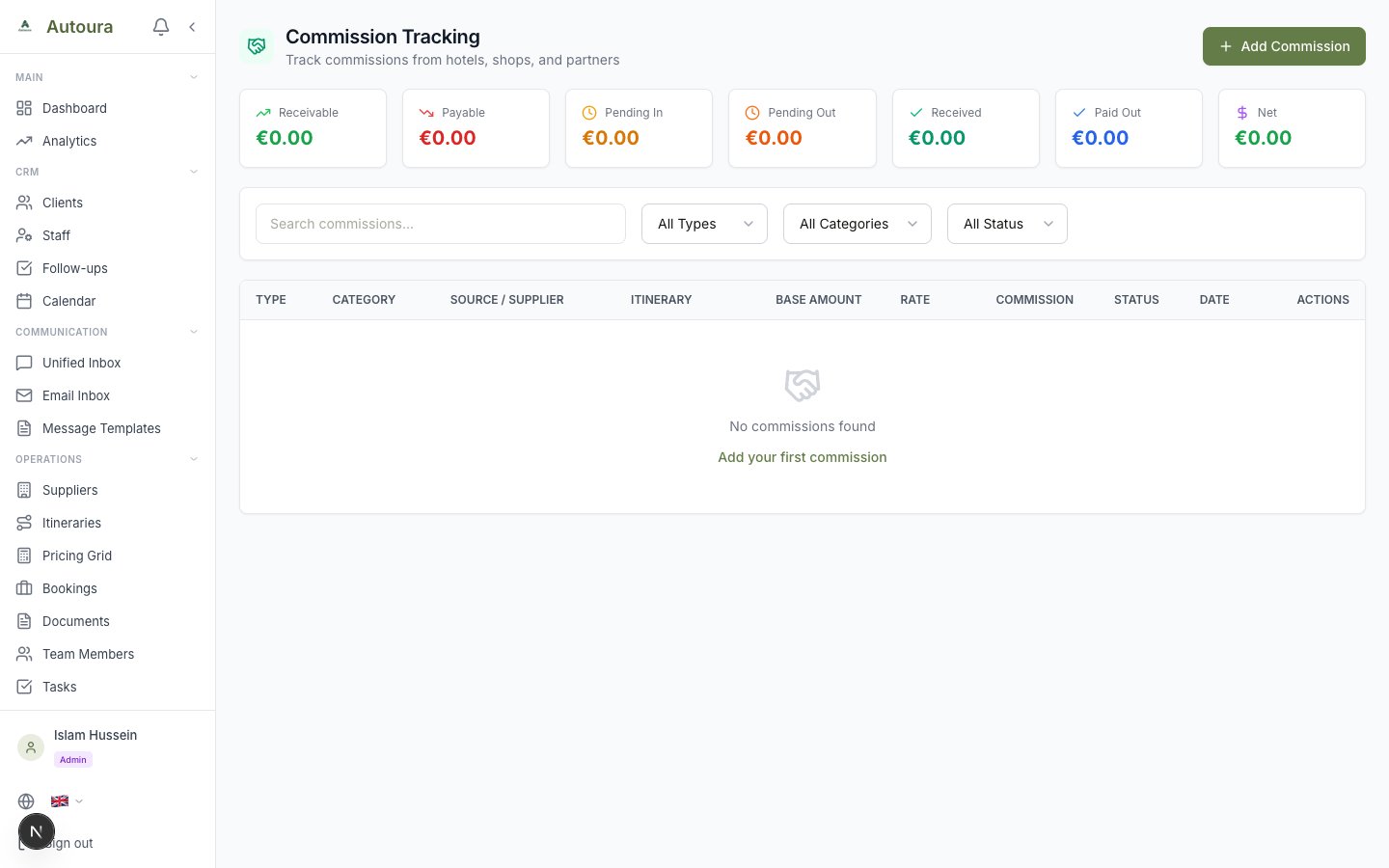
Commission Tracking page with summary cards, filters, and commission list
Tracking them
- Cards: Receivable, Payable, Pending In, Pending Out, Received, Paid Out and Net, per currency. Cancelled commissions are left out; anything not yet received or paid is pending.
- Filter by type, category or status; search by source, description, supplier or trip.
- The check mark settles a pending, invoiced or disputed commission: Mark as Received for a receivable, Mark as Paid for a payable.
Receivables, Payables & Supplier Invoices
Aging of what clients owe and what you owe, and matching supplier bills to expenses, are in Invoices & Payments.
Reports
Reports (Home, managers and admins) is the yearly financial dashboard. Pick a year, then:
- Overview — headline figures and spend by category
- Revenue — by quarter and by month
- Cash Flow — month by month, with receivables and payables
- Tax Summary — revenue, expenses and taxable income; VAT collected is the tax on your invoices. VAT you paid is not tracked (expenses carry no tax line), so it is shown as not available rather than estimated.
- Commissions — by type and by recipient
Every table has a CSV export button.
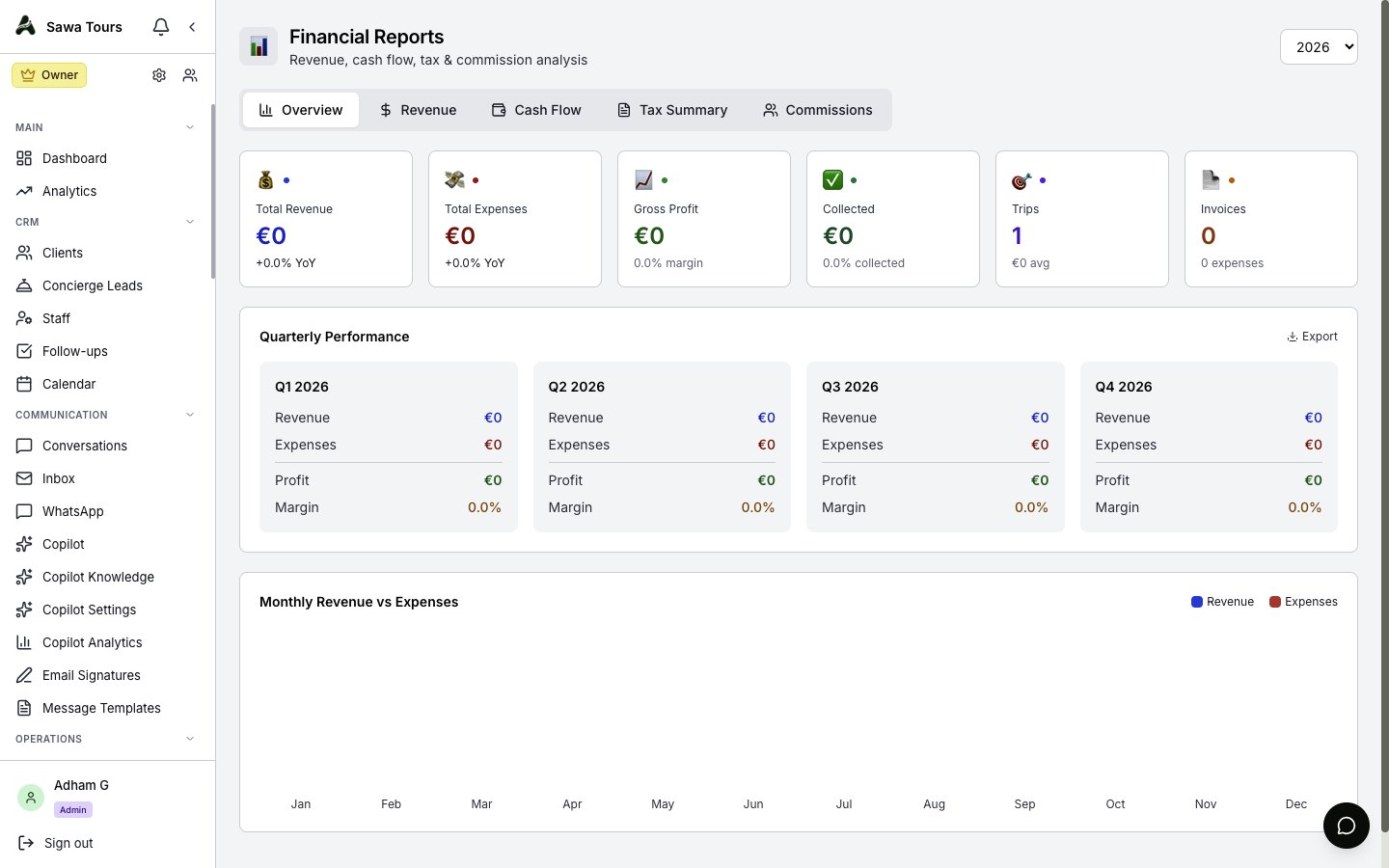
Reports page with Overview, Revenue, Cash Flow, Tax Summary, and Commissions tabs