Team Members
Your staff directory, under People → Team Members: the guides, drivers and office staff that trips, tasks and WhatsApp chats are assigned to. Adding someone here does not give them a login — logins and their permissions are in User Management (see Team & Settings). Admins and managers see and edit the directory.
The directory
The counts at the top give the active members and how many hold each role. Search by name or email, filter by role or department, and tick Show inactive to see deactivated members. Manage departments opens the department list.
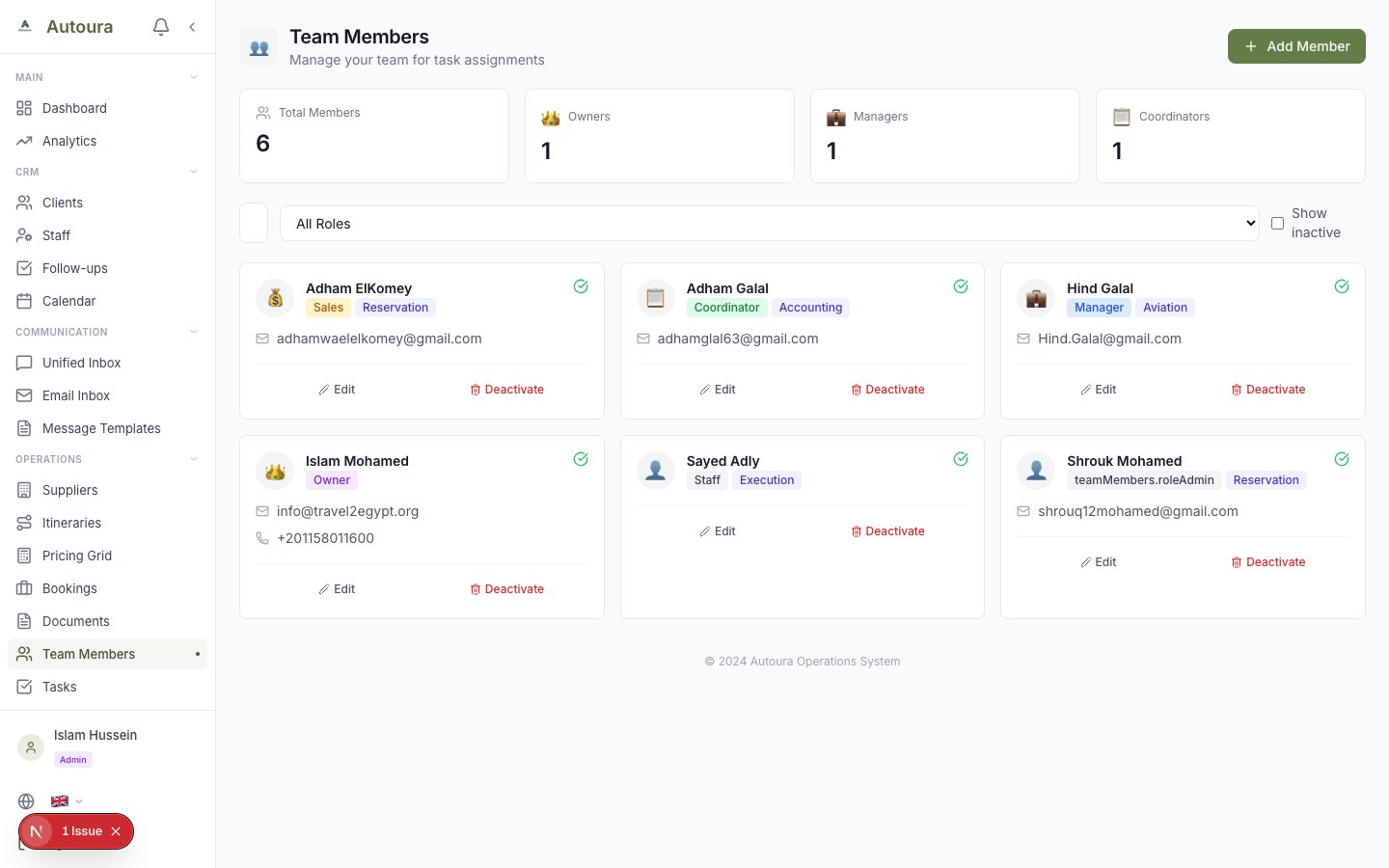
Team Members staff directory with job-title roles, departments, and filters
Adding or editing a member
- Name — the only required field.
- Email — optional, but two members cannot share one; the form says so if they do.
- Phone — with the country code (+20 …).
- Role — a job title: Owner, Manager, Coordinator, Sales, Tour Guide, Driver or Staff. It is not a permission.
- Staff type — Office, Guide, Driver, Airport staff or Hotel staff. This is what the assignment pickers read: a trip or vehicle that needs a driver offers your Drivers. Choosing the role Tour Guide or Driver sets it to Guide or Driver; you can still change it. A new member is Office staff unless you pick otherwise.
- Department and Notes — optional.
If a save is refused, the reason shows at the top of the form.
Members who also log in
A member whose email is the same as a user’s login is linked to that user. Change the email and the link follows the new address. When Activity Summaries are on, a linked member shows an Activity button — see Team Activity.
Deactivating
Deactivate takes a member out of the directory and the pickers without deleting them, so the tasks and trips they worked on keep their name. Reactivate brings them back.