Communication
Everything you use to talk with clients lives in the Communicate group, second in the sidebar right under Home. It holds, in order:
- Conversations — WhatsApp, email and trip chat in one place
- Inbox — your connected Gmail
- WhatsApp — the WhatsApp inbox
- Concierge Leads — briefs from the AI Concierge (guide)
- Copilot and Copilot Knowledge — AI-drafted replies (guide)
- Message Templates (guide)
- Email Signatures
- Content Library, AI Prompts and Writing Rules — admins and managers (guide)
Viewers do not see the Communicate group.
Conversations (Unified View)
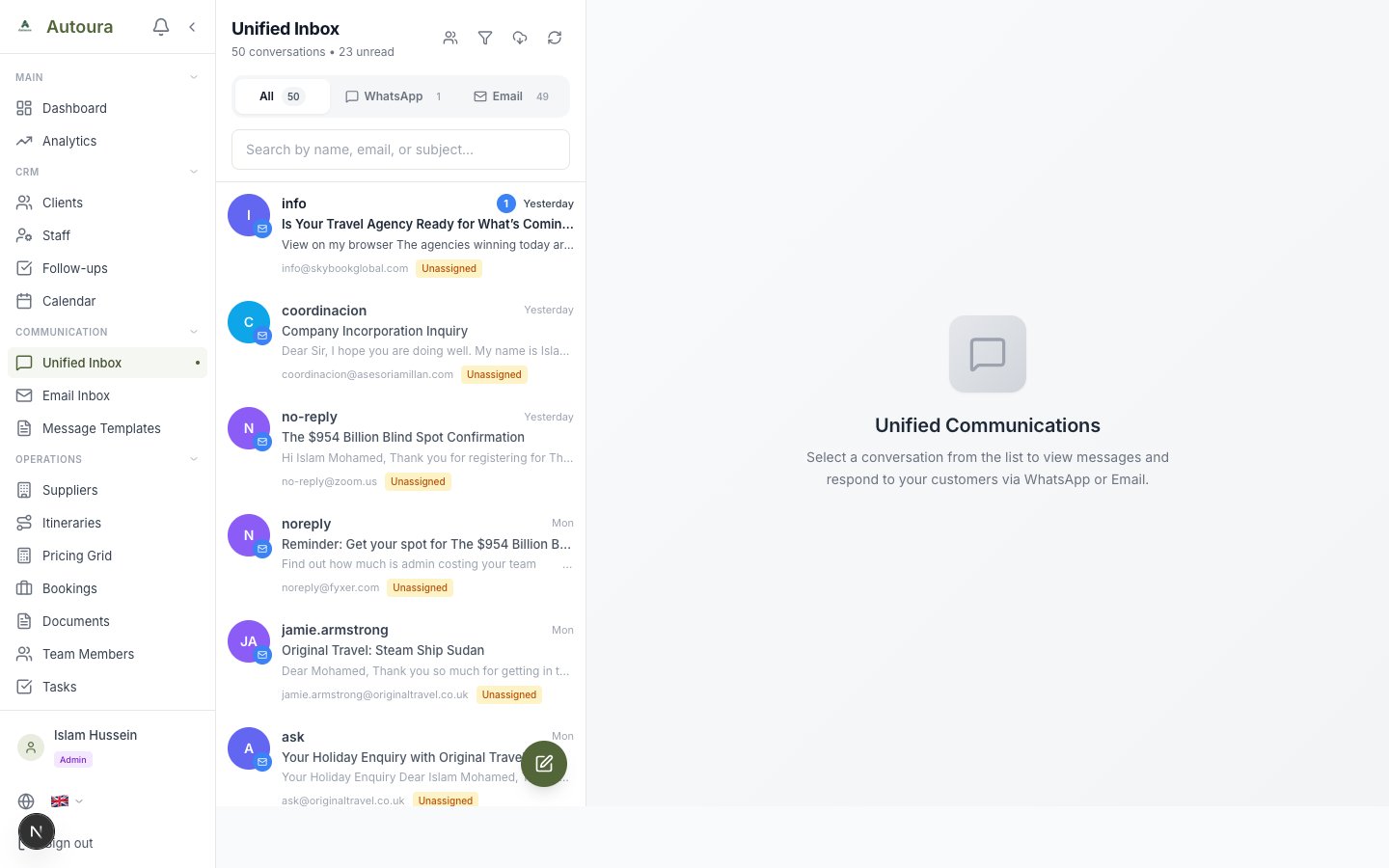
Conversations brings your WhatsApp chats, email threads and trip chat (messages travellers send from their shared trip page) together in one list, so you see every exchange with a client whatever the channel.
- Filter by channel (All Channels, WhatsApp Only, Email Only, Trip Chat Only) and by status (Active, Archived, All), or search conversations
- Star the ones to come back to; unread conversations carry a badge
- Sync Emails pulls in the latest mail from your connected Gmail
- Reply from the composer at the bottom: plain text on WhatsApp; on email a rich-text editor with your signatures and attachments. Both offer Copilot's suggested reply.
- View Client opens the linked client's profile
When a client messages your business WhatsApp number, the conversation appears here automatically and the team is notified.
Using the Inbox
- Go to WhatsApp in the sidebar (under Communicate)
- The left panel lists conversations with the latest message, its time, an unread count and who it is assigned to. Use search to find one, or the All, Mine (assigned to you) and Unassigned tabs to filter.
- Click a conversation to open the chat on the right; it is marked read
- Type your reply in Type a message… and send. Each message you send shows whether it was sent, delivered, read or failed.
The list refreshes by itself every 15 seconds; the refresh button updates it at once.
WhatsApp inbox with the conversation list on the left and an open chat with translation controls on the right
In a Conversation
- Two-way AI translation — Pick the client's language under Send in: and yours under Read in:, then click Translate (it reads Translation ON while active). Incoming messages are translated for you, with the original underneath, and each can be switched with Translate / Show Original. As you type, a Will send: preview shows the translated text that goes out.
- Assignment — From the header, Claim for myself, Assign to a team member, or Unassign. Manage Agents (top of the list) adds the team members who take WhatsApp conversations and marks them Available or Away. To claim conversations and use Mine, you must be one of them: add yourself with the email you sign in with.
- AI Copilot — A draft already prepared for the latest message shows in the composer panel; otherwise click Suggest Reply. Use puts it in the composer to edit and send, or dismiss it.
- Client / Create — Client opens the linked client's profile; Create starts a new client with the phone number filled in
- Parse — Sends the whole chat to the Quote Builder (see below)
- Activity History — The history icon shows what has happened on the conversation
- New conversation — The green + opens New Conversation: enter the phone number and click Start Chat
- Delete — Hides the conversation from the inbox. If the client writes again, it comes back.
Photos and files a client sends are not shown in the inbox yet — ask them to email documents you need to see.
Your WhatsApp Number
Settings → WhatsApp (admins) shows the number your clients see under Your WhatsApp number:
- Your own number — Every message to it reaches your company, even from someone who has never written before: they are added to your clients as a new Lead, and everything you send goes out from your number. The Autoura team sets it up for you.
- The shared platform number — Replies from your existing clients reach you, but someone writing to it for the first time cannot be matched to your company. Ask the Autoura team for your own number.
The same page has Test Connection, which sends a test message from your number, and AI Auto-Reply: when it is on, the AI answers incoming WhatsApp messages by itself.
Parse a Request into the Quote Builder
A client's request can go straight to the Quote Builder (the pricing grid), which reads it, lays out the trip day by day and prices every day from your rates.
How to Use It
- In a WhatsApp conversation, click Parse. In the Inbox, click the purple sparkles icon on the email (Parse and price in the Pricing Grid).
- The Quote Builder opens and reads the request: the days and their cities, the number of travellers, start date, nationality, tour name and client name are filled in for you
- Review each day, adjust services, tier and margin, then Save
The Client in your CRM
When you save, the itinerary and quote land on a CRM client. If the conversation is already linked to a client, that client is used (a green CRM client tag shows in the grid). Otherwise the grid looks for a client with the same email, then the same phone. If there is none, a new Lead is created from the name and the email or phone — and a WhatsApp chat with no client yet is linked to it. B2B quotes never create a Lead.
Email Inbox
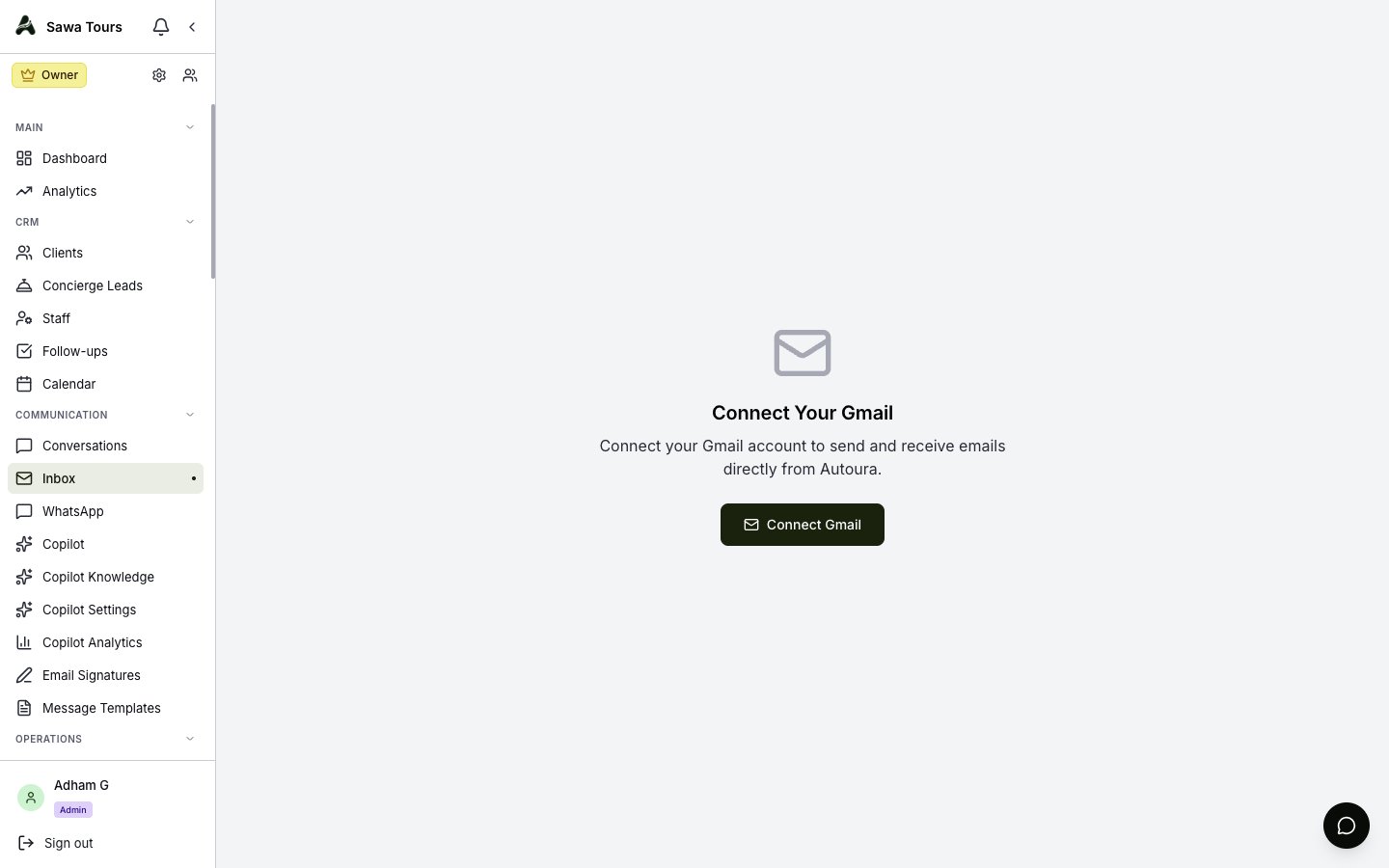
The Inbox is your company's Gmail, inside Autoura.
Connecting Gmail
- Go to Settings → Email (admins), or click Connect Your Gmail in an empty Inbox
- On the Connection tab, click Connect Gmail
- Sign in with your Google account and allow every permission asked for
Using the Inbox
- Folders — Inbox, Sent and Drafts, plus your own folders (your Gmail labels). New Folder creates one; Move to folder files an email.
- Filters — Business (the default: leaves out Gmail's Promotions, Social and Forums and automatic senders such as no-reply addresses — mail from your clients, partners and suppliers always shows), Everything, Unread and Starred; or Search emails
- Actions — Archive, Delete (moves the email to Gmail's Trash), mark read or unread, and star
- Compose, Reply and Forward in a rich-text editor (formatting, links, images)
- Templates — Insert a message template while composing; its placeholders are filled from the client, partner or itinerary
- Signatures — Your default signature is added automatically; pick another from the Signatures menu
- Attachments — Download what a client sent
- Link to Client — Attach the email to a client record
Email inbox showing the message list with sender, subject, and preview for each email
Copilot (AI-Drafted Replies)
Copilot drafts replies to incoming messages; you review each one before it goes out. Its pages:
- Copilot (Communicate) — The review queue: Approve and Send a WhatsApp draft (an email draft is Approve & hand off: it opens in Conversations, filled in, for you to send), Regenerate it, or Reject it. Choose the tone: professional, friendly or formal.
- Copilot Knowledge (Communicate) — The FAQs, policies and tour facts Copilot draws on
- Copilot Settings (Settings, admins) — Including drafting replies in advance as messages arrive
- Copilot Analytics (Home) — Draft volume and how many are accepted
Copilot never sends by itself. Only WhatsApp AI Auto-Reply, when an admin turns it on, answers without review. See the AI Copilot guide.
Email Signatures
Email Signatures holds your personal signatures. The one marked default is added automatically when you compose or reply in the Inbox or Conversations.
Concierge Leads
Planning briefs from your website's AI Concierge arrive under Concierge Leads. Work each one through Needs Review, In Progress and Responded, and turn it into an itinerary with Create itinerary. See the Concierge Leads guide.
Need Help?
Use the floating Support Chat button (bottom right of every page) to message the Autoura support team — we reply in the chat and by email.