AI Copilot
The AI Copilot drafts replies to incoming WhatsApp and email messages so your team reviews and sends them instead of typing from scratch. A Copilot draft never reaches a customer until someone on your team sends it. (WhatsApp AI auto-reply is a separate feature that answers on its own — see Copilot Settings below.)
The Review Queue
Open Copilot in the sidebar (Communicate group). Conversations waiting for a reply are listed on the left — those with the most drafts to review first, then the most recent. Each shows:
- Urgency dot — red for urgent, amber for high, grey otherwise
- Channel icon — WhatsApp or email
- The client (or their number or address), the subject, how long ago, and a snippet of the message
- “N drafts to review” when drafts are waiting
In the header, choose your Tone — professional, friendly, or formal — for the drafts you ask for; it is saved for you. The refresh button reloads the queue. When nothing is waiting: “No threads awaiting review.”
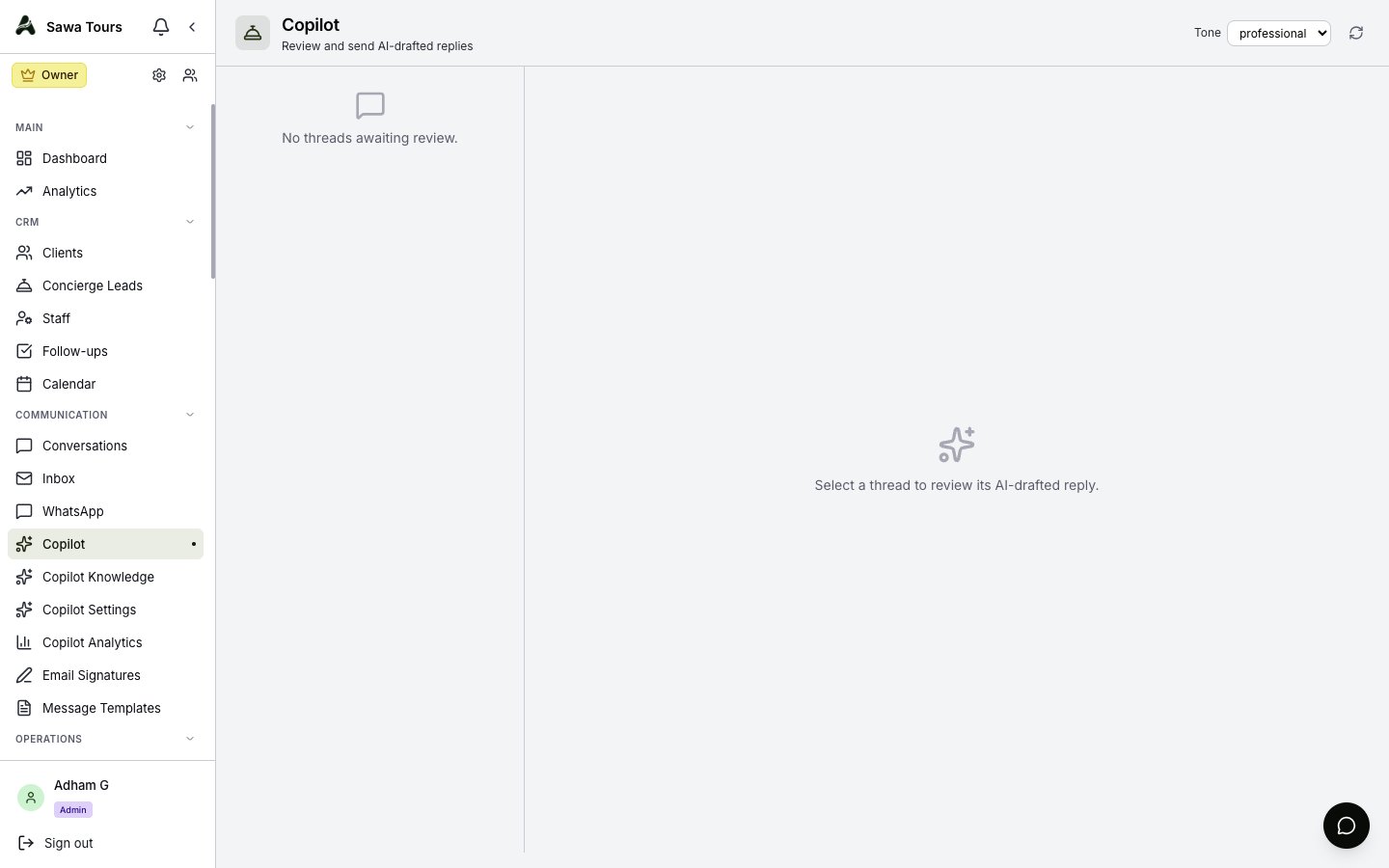
The Copilot page: the review queue on the left, the review panel on the right, and the Tone selector in the header
Reviewing a Draft
Click a conversation to open it on the right:
- Customer message — The latest message to answer, with a link to the client
- Context card (collapsible) — The client's details with a VIP star, contact, nationality and language, and their Recent trips, Invoices and Payments
- AI draft reply — The draft, which you can edit, with a high, medium or low confidence badge
- A red banner — “AI flagged this for escalation”, with the reason, when the message needs a person before anything is sent: a complaint, a refund or cancellation demand, an emergency, a legal threat
The Actions
- Reject — Dismisses the draft
- Regenerate — Opens an optional instruction (“offer a 10% discount”); click Generate for a new draft
- Approve — Saves the draft with your edits, without sending it
- Send (WhatsApp) — Sends the text in the editor straight away and marks the conversation resolved
- Approve & hand off (email) — Email drafts are sent from Conversations, so the reply stays in the email thread: click Open conversation, and the reply box is already filled in with the approved draft and its subject. Check it and send.
A conversation with no draft says “No AI draft yet for this thread.” Drafts are written in advance only when Proactive draft pre-generation is on (Copilot Settings); otherwise ask for one with Suggest Reply in the WhatsApp page or Conversations.
Screenshot: Review panel showing the customer message, expanded context card with client details, an editable AI draft with confidence badge, and the Reject / Regenerate / Approve / Send actions
Copilot in WhatsApp and Conversations
The WhatsApp page and Conversations have an AI Copilot panel above the message box (the email Inbox does not):
- Click Suggest Reply — Copilot writes two options, Option 1 and Option 2, with its confidence and reasoning. A draft written in advance shows straight away, marked ready.
- Use puts an option in the message box to edit and send; the × dismisses it
- Regenerate asks again; Dismiss all clears them
Copilot Knowledge
Copilot Knowledge (Communicate group) is the Copilot Knowledge Base: the facts Copilot draws on when drafting.
- Types — FAQ, Policy, Tour and Other, with filter pills showing each count
- Add entry — Pick the type and a title; an FAQ has a question and its answer
- Enable / Disable, Edit or Delete each entry; a disabled entry is not used
- Bulk import — Paste a document (at least 20 characters). AI-structured splits it into typed entries (up to 40); As a single entry keeps it whole, with the type and title you choose. Long text is split into chunks automatically. The result reads “Imported X of Y entries”.
- Your copilot tone — The same tone choice as on the Copilot page
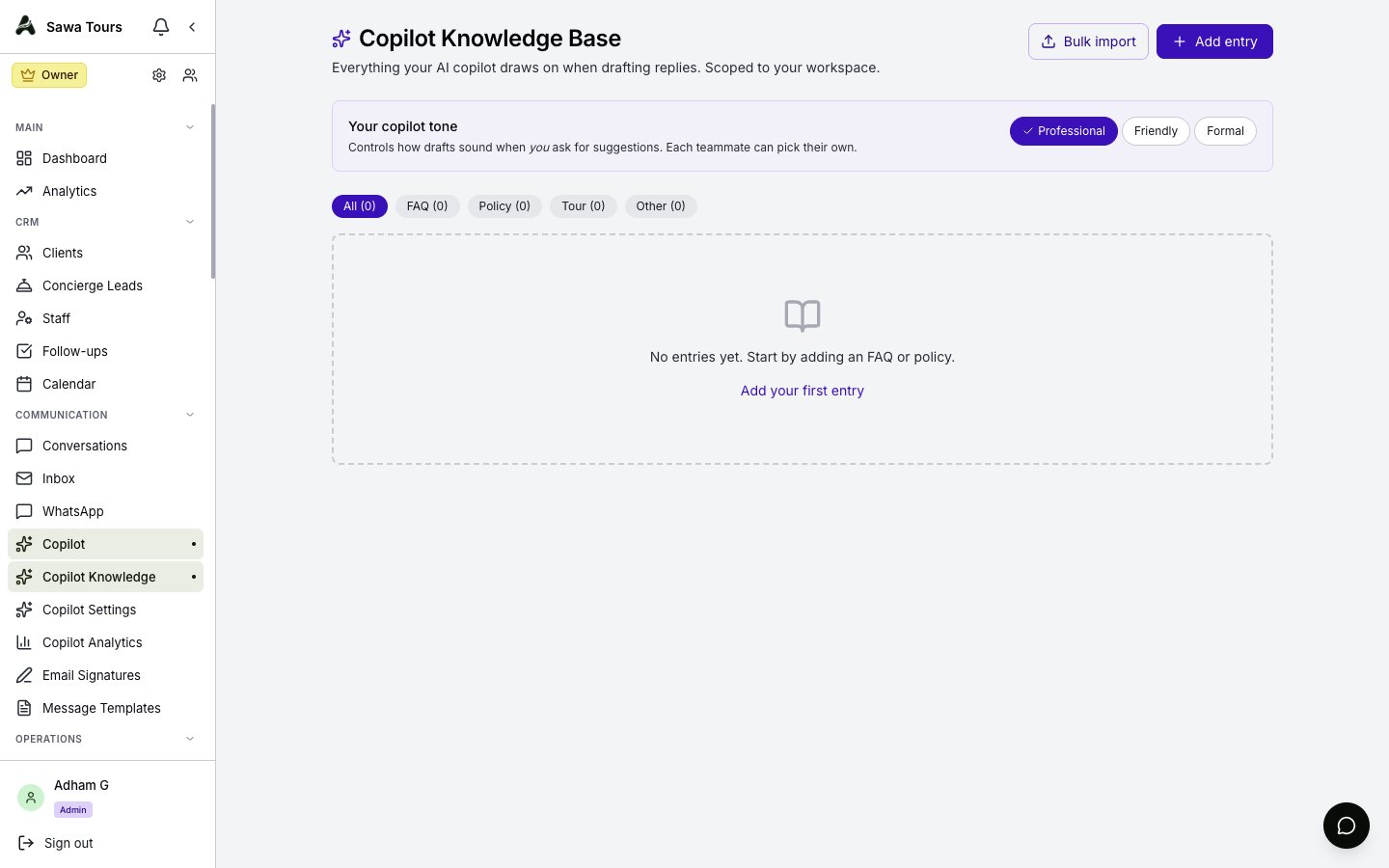
Copilot Knowledge Base page with the FAQ, Policy, Tour and Other filter pills and their counts
Copilot Settings
Copilot Settings is in the Settings section of the sidebar, for admins. It has two switches for the whole company:
- Proactive draft pre-generation (off by default) — Copilot drafts a reply as soon as a WhatsApp or email message arrives, so it is waiting in the review queue. Drafts written this way use the professional tone. Nothing is sent.
- WhatsApp AI auto-reply (off by default, marked dangerous) — The AI answers incoming WhatsApp messages by itself, with no review. The same switch is under Settings → WhatsApp, and it only works once the Autoura team has enabled AI replies for the platform.
Screenshot: Copilot Settings: the Proactive draft pre-generation switch and the WhatsApp AI auto-reply switch marked dangerous
Copilot Analytics
Copilot Analytics is in the Home section of the sidebar, for admins and managers. Choose Last 7d, Last 30d (the default), Last 90d or All time:
- Drafts generated, Sent to customers, Dismissed and Pending review
- Accept rate, Edit rate (how often a sent draft was changed first), RAG hit rate (how often the knowledge base was used) and Pre-generated
- Daily volume, and breakdowns By channel, By tone and Confidence
- Top-retrieved knowledge — The entries Copilot uses most
- Per-user activity — Drafts each person reviewed and sent, and their accept rate
Screenshot: Copilot Analytics: the period buttons, the draft counts, the rates, the daily volume chart and the breakdowns
Who Can Use It
Copilot and Copilot Knowledge are open to admins, managers and members (members can edit the knowledge base). Copilot Analytics is for admins and managers; Copilot Settings for admins.