Getting Started
Logging In
- Go to your Autoura URL (e.g.,
https://getautoura.net) - Enter your email and password
- Click Sign In
Forgot your password? Use the Forgot password link on the login page to reset it by email.
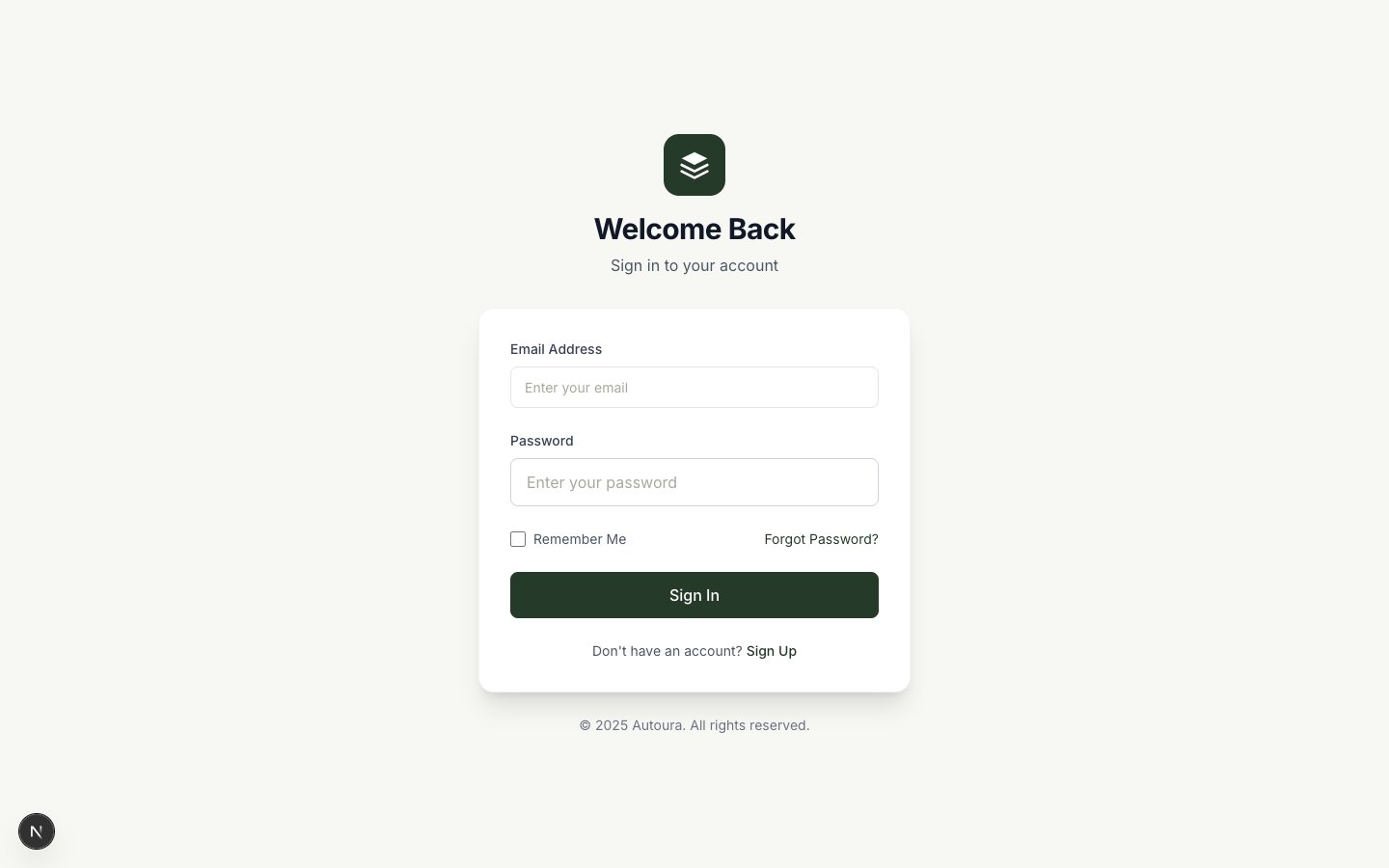
Login page with email and password fields and a Forgot password link
Creating a New Account
If your company is new to Autoura, click Sign up on the login page — no invitation needed. Enter your details, then confirm your address from the email we send. The first time you sign in, a wizard sets up your company in seven steps:
- Welcome — A quick introduction
- Business — Your company details
- Your words — The cities you sell, what you call your service tiers, and the kinds of suppliers you work with. Egypt's defaults are pre-filled; every dropdown in the app follows your choices, and an admin can change them any time in Settings → Your Vocabulary
- Branding — Logo and colors used on your documents
- Team — Invite your teammates: each gets an invitation email (if one cannot be sent, you are shown the link to pass on). Optional — you can invite people later from User Management
- Tour — A short tour of the app
- Complete — You're ready to work
Joining by Invitation
If you received an invitation email (it names the company and your role):
- Click the invitation link in the email. It is valid for 7 days; an admin can resend it with a fresh link.
- Enter your Full Name, a Password and Confirm Password (minimum 8 characters)
- You are taken to the dashboard — no separate confirmation email is needed; the invitation link already proves it is your address
Working for Several Companies
One login can belong to several companies, with a different role in each. When it does, a Companypicker appears in the sidebar under your role: choose a company and Autoura reloads in it — its clients, trips, rates, settings and your role there. Autoura remembers your choice the next time you sign in.
If you are deactivated in the company you chose, you are taken to your next company automatically.
Your Gmail is connected per company: in each company, connect the mailbox you use for it under Settings → Email (it can be the same address). The Inbox, replies and the mail sync use the current company’s mailbox, and disconnecting in one company leaves the others connected.
Your Role
Your role is set when you are invited (admins invite managers, members and viewers; owners can also invite admins). It decides what you can see and do:
| Role | What You Can Do |
|---|---|
| Owner | Everything an administrator can do. Only an owner can make someone an owner, change an owner’s role or deactivate an owner |
| Administrator | Everything, including the admin-only Settings area: organization, vocabulary, destinations, WhatsApp, Copilot, billing and user management |
| Manager | All day-to-day operations plus Rates, Finance, Suppliers, Itineraries, Tour Departures, Team Members, and Tasks |
| Member | Day-to-day selling and service: Inbox and WhatsApp, the Quote Builder, B2C Quotes, Bookings, the Booking Calendar, Follow-ups, Clients, and Invoices, Payments, Receipts and Expenses (adding and editing, not deleting). Itineraries and Tasks open from the links in their work (a quote, a booking, a notification) but are not in their sidebar. No Rates, Suppliers, Tours, B2B, Partners, Team Members, Documents, Reports, Receivables, Payables, Commissions or P&L; in Settings, only their own profile, email and signatures |
| Viewer | The Dashboard (without money), Analytics, Notifications and their own profile |
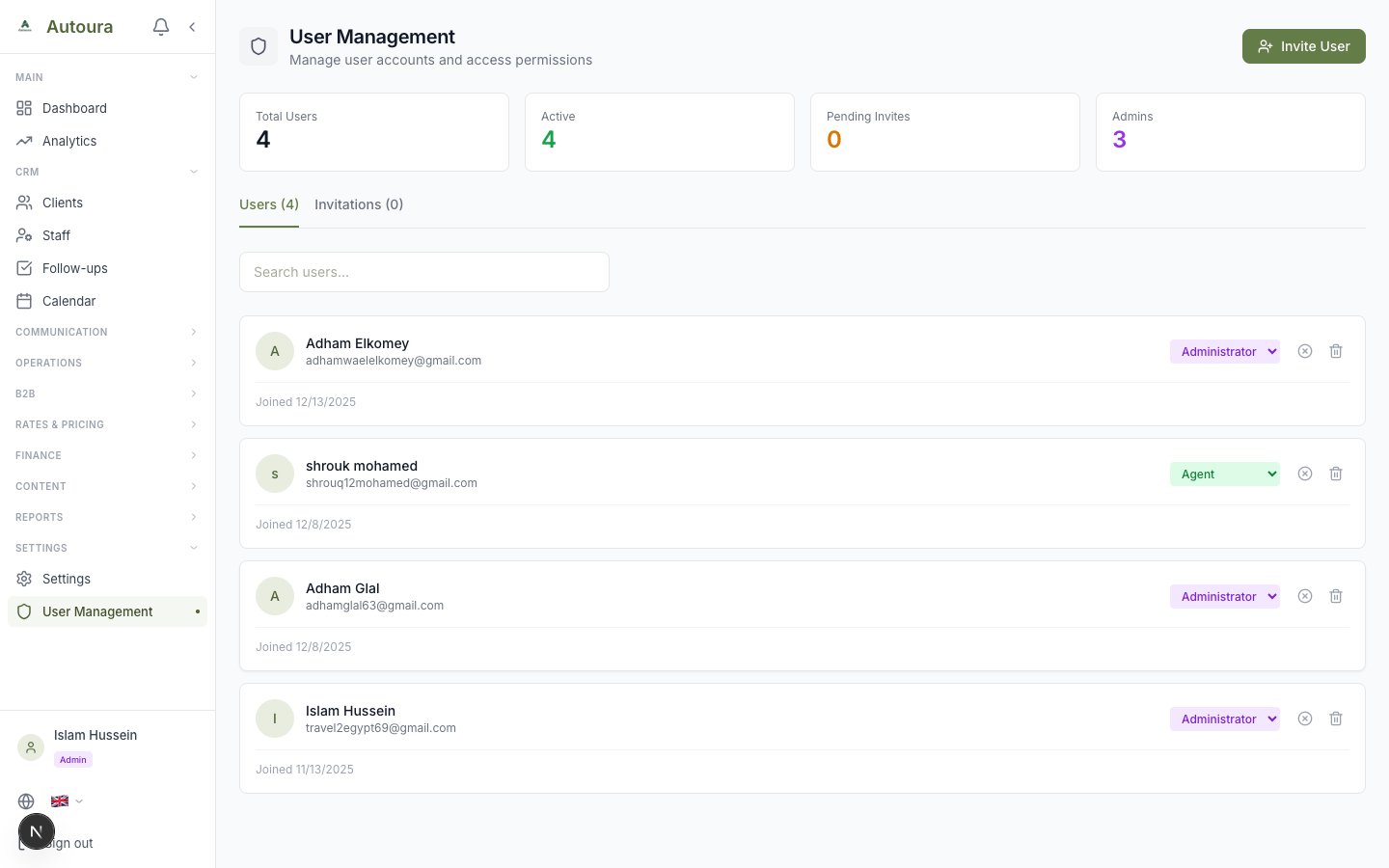
User management page listing team members with their assigned roles
Getting Help
Every page in the app has a floating Support Chat widget in the corner. Use it to message the Autoura support team directly — you'll get an email notification when they reply, and the full conversation stays in the widget.