Message Templates
Create, manage, and send pre-designed messages to clients, partners, suppliers, and team members via email, WhatsApp, or SMS. Templates save time by letting you reuse common messages with placeholders that fill in real data.
Viewing Templates
Go to Message Templates in the sidebar (Communicate group). Each card shows the template's name, category and subcategory, a channel icon, its language flag, the start of the message, and a v2, v3… badge once it has been edited.
- Search templates… finds templates by name, description, or content
- Filter by category: All Templates, Customer, Supplier, B2B Partner, Internal
- Filter by channel: All Channels, Email, WhatsApp, SMS, Both (a template for every channel shows under each)
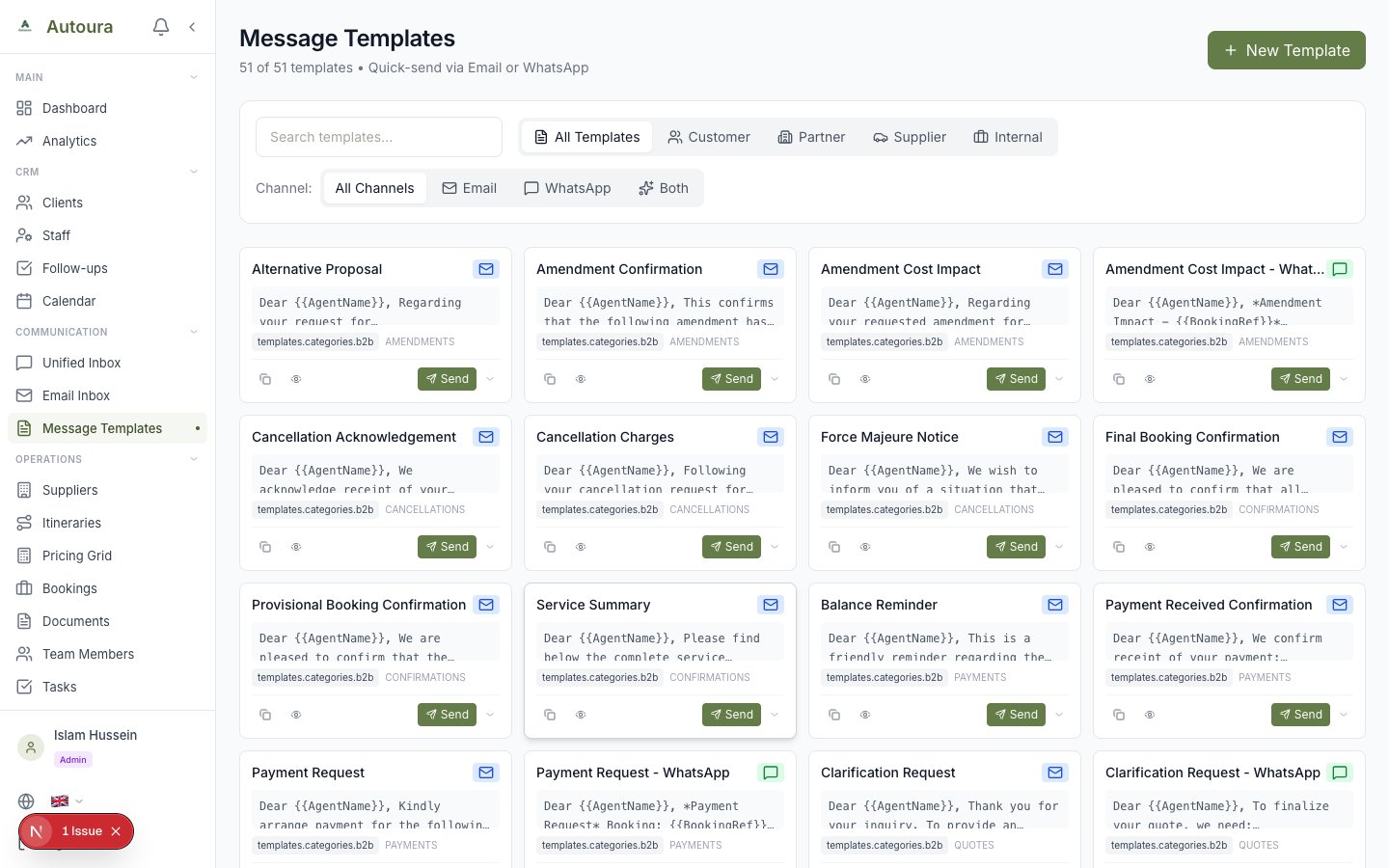
Message Templates list with search, category and channel filters, and template cards with Send buttons
Starter Templates
Load starter templates (in the header, and on an empty page) adds 37 ready-made English templates — quotes, confirmations, payment reminders, hotel and transport bookings, partner offers, team handovers — for email and WhatsApp, already written with the placeholders below. It skips any you already have, so it is safe to click again. Edit them to your own wording.
Creating a Template
- Click New Template
- Enter a Name (e.g., “Booking Confirmation”) and, if you like, a Description
- Choose the Category:
- Customer (B2C Travelers) — For client-facing messages
- Supplier (Hotels, Cruises, Guides) — For hotels, cruises, transport and guides
- B2B Partner (Tour Operators) — For the agencies you sell through
- Internal (Team) — For team communications
- Optionally set a Subcategory. For supplier templates it decides which list you send to:
cruise_holdorcruise_voucher→ Nile cruises;transport_bookingortransport_voucher→ transport;guide_bookingorguide_voucher→ guides; anything else → hotels. Type it exactly like that. - Choose the Channel:
- Email — Includes a subject line and body
- WhatsApp — Body text only
- SMS — Body text only
- All Channels — You pick the channel when sending
- Choose the Language
- Write the Subject (Email) for email templates, and the Body. The Quick Insert Placeholders chips add a placeholder to the end of the body; the Live Preview highlights every placeholder you used.
- Click Create Template (Update Template when editing)
Screenshot: Template creation form with name, category, subcategory, channel, language, body, and live preview
Placeholders
A placeholder is a word in double braces, such as {{client_first_name}}. When you send, it is replaced with real data — exactly as written, so spelling and capitals matter.
Placeholders That Fill Themselves
Which ones fill depends on the template's category and the recipient you pick. Customer templates also take the trip and payment details from the client's most recent itinerary.
| Template | Placeholders |
|---|---|
| Every template (the sender) | {{agent_name}} {{company_name}} {{company_phone}} {{company_email}} |
| Customer — the client | {{client_name}} {{client_first_name}} {{client_email}} {{client_phone}} |
| Customer — their latest trip | {{trip_name}} {{itinerary_code}} {{booking_ref}} {{confirmation_number}} {{start_date}} {{end_date}} {{trip_dates}} {{total_days}} {{num_adults}} {{num_children}} {{total_travelers}} |
| Customer — money | {{total}} {{deposit}} {{balance}} {{total_paid}} {{currency}} {{payment_status}} {{deposit_due_date}} {{final_payment_due}} |
| B2B Partner | {{partner_company}} {{partner_name}} |
| Supplier | {{supplier_name}} — and {{HotelName}}, {{CruiseName}}, {{GuideName}} or {{TransportCompany}} by subcategory |
| Internal | {{team_member_name}} |
| Any template | {{today}} |
Sending a Template
- Click Send on a template card, or open Preview (the eye icon) and click Send This Template
- The recipient list follows the template's category — Select Client, Select B2B Partner, Select Team Member, or for a supplier template the hotel, Nile cruise, transport or guide list its subcategory names
- Pick the recipient; the placeholders in the table above fill in
- Type anything still empty under Fill Placeholders. The Preview shows the message as it will go out.
- For a template on all channels, choose Send via: WhatsApp, SMS or Email. If the template has translations, choose the Language.
- Click Send WhatsApp, Send SMS or Send Email
Email goes out from your own connected Gmail (connect it under Settings → Email); WhatsApp from your company's WhatsApp number.
Screenshot: Send template dialog with recipient selection, Fill Placeholders, and the preview
Sending to Several People
Tick Bulk, select the recipients (or Select All), and click Send to N Recipients. Each one gets the message with their own details, and a progress bar shows it going out. Recipients without an email or phone for the chosen channel cannot be selected.
Templates in the Inbox
When you compose or reply in the email Inbox, the Templates menu lists your Customer, B2B Partner and Internal templates. Pick one, fill its placeholders from the client, partner or itinerary, and click Apply Template. WhatsApp-only templates are greyed out there.
Languages and Translations
A template can be in English, Arabic, Spanish, French, German, Italian, Portuguese, Russian, Chinese or Japanese. Add Translation (from a template's menu) makes a copy in another language linked to the original; when you send, you choose the language.
Template Analytics
Click Analytics in the header to open Template Analytics:
- Total Templates
- Messages Sent — In the last 30 days
- Success rate — The share of those sends that went out without error
- Scheduled — Scheduled sending is not available yet, so this stays at 0
- Most Used Templates — Your five most-used templates, with how many times each was used
- Templates by Channel — How many templates you have for each channel
Screenshot: Template Analytics: Total Templates, Messages Sent, success rate, Most Used Templates and Templates by Channel
Managing Templates
From a template card you can:
- Copy — Copies the message to your clipboard
- Preview — View the full template
- From the card's menu: Edit, Duplicate (a copy named “<name> (Copy)”), Add Translation, or Delete
Each send or copy counts as a use in the analytics.
Example Template
A customer template where every placeholder fills itself from the client and their latest itinerary:
Booking Confirmation (WhatsApp, Customer)
Hello {{client_first_name}},
Your booking for {{trip_name}} is confirmed!
Dates: {{trip_dates}}
Travelers: {{total_travelers}}
Reference: {{itinerary_code}}
Total: {{total}}
Deposit: {{deposit}} by {{deposit_due_date}}
Best regards,
{{agent_name}}
{{company_name}}