Bookings
A booking is a sold trip: its travellers, payments, suppliers and extras in one place. A trip has one booking.
Creating a Booking
A booking is created in one of two ways:
- From an accepted quote — Open the B2C or B2B quote, set its status to Accepted, then click Convert to Booking and confirm Create booking. The button stays disabled until the quote is accepted.
- From an itinerary — Confirming an itinerary creates its booking. On the itinerary page, Convert to Booking confirms it; Create Booking books an itinerary that is already confirmed; once booked, Go to Booking BK-… opens it. These bookings are marked DIRECT.
A new booking starts as Pending Deposit, with the deposit set by your company's deposit rule. A conversion is refused — and says why — when the quote has unpriced services, no price or no traveller count, when its itinerary has no dates, or when the trip is already booked.
The Bookings List
Go to Bookings in the sidebar (Sell group):
- Tabs — All Bookings, B2C (Direct Clients) and B2B (Partners). Bookings made from an itinerary show under All Bookings.
- Stat cards — Total Bookings, Pending Deposit, Confirmed (including paid in full), In Progress and Completed
- Search by booking number, client name or trip, and the status filter
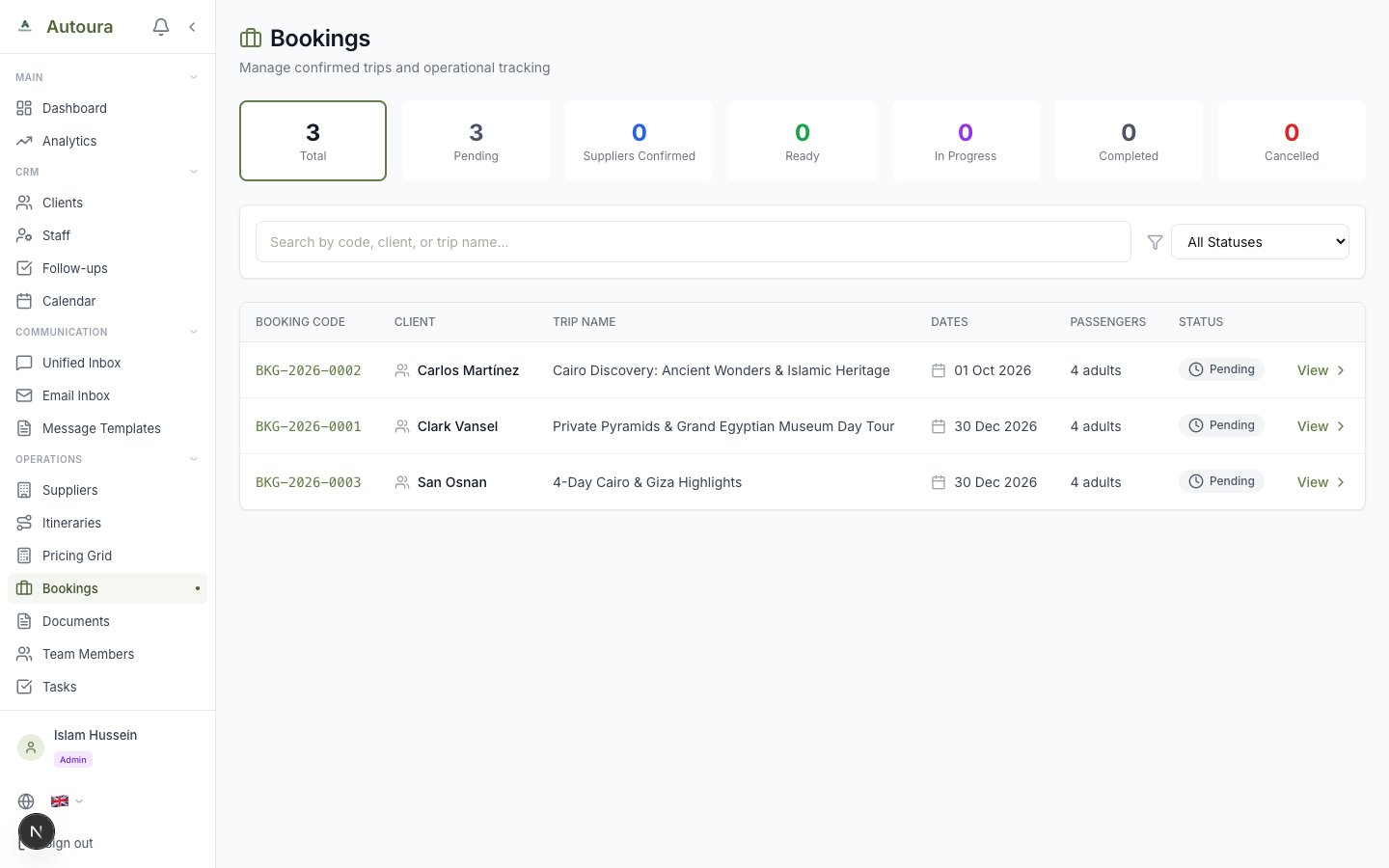
The Bookings list with its tabs, stat cards, search and status filter
Statuses
Three follow the payments by themselves:
- Pending Deposit — Less than the deposit has been paid
- Confirmed — The deposit is paid (or any payment, when there is no deposit). A refund on a fully paid booking brings it back here.
- Paid in Full — Everything is paid
Managers and admins set the other three from the status menu at the top of the booking:
- In progress and Completed — The app checks that every supplier is confirmed first; Go ahead anyway moves on and records how many were
- Cancelled — After you confirm Cancel booking
- Active (follows payments) — Reopens the booking and lets the payments decide again
The Booking Page
A booking has five tabs.
Overview
Booking Information (client, trip, dates, quote type) and the Payment Summary — total, paid, balance due and a bar with the share paid. Choose who on the team looks after the booking, and sell add-ons and upgrades in Extras and upgrades (see Extras & Upgrades).
Screenshot: Booking Overview: Booking Information, the Payment Summary bar, and Extras and upgrades
Suppliers
Every supplier on the trip, by date: Sync from itinerary fills the list. For each, track the status (Pending, Contacted, Confirmed, No response, Not needed) and the confirmation number. Confirming a supplier adds its cost as a pending expense.
Passengers
The travellers on the booking. Add Passenger asks for the first and last name, passport number, type (Adult, Child or Infant) and whether they are the Lead Passenger. The rest — date of birth, nationality, passport details — travellers fill in themselves through the portal.
Portal link creates the booking's traveller portal link (or reuses it) and copies it for you to send to the lead traveller.
Screenshot: Passengers tab with the passenger list, Add Passenger and Portal link
Payments
Every payment with its number, type, status, amount, method, date, reference and notes. Record Payment (managers and admins) asks for the amount, the type (Deposit, Installment, Balance, Full Payment), the method (Bank Transfer, Credit Card, Cash, PayPal), a reference and notes. The booking's status updates with each payment.
Documents
Traveller uploads: the passport scans and documents travellers sent through the portal. Open each with View; the links are short-lived, and the files are deleted automatically after the trip.
The Traveller Portal
The portal link lets travellers do their own paperwork. After confirming who they are, they:
- Fill in each traveller's details and upload passports and other documents
- (The lead traveller) Invite your co-travellers with their own private links
- Ask to bring more people, which reaches you as a change request
- Answer the options and upgrades you offer, and ask for others
A request to add travellers shows on the Passengers tab: Approve re-prices it per person and adds empty passenger rows; Reject declines it.
Once the details are final, Lock details (beside Portal link) stops changes: travellers still see the portal but can no longer edit their details, upload documents or ask for extras. Unlock details opens it again.
Sending the Confirmation
On a B2C or direct booking, Send Email and WhatsApp in the header send the client their booking confirmation (managers and admins). Each appears when there is somewhere to send it — the client's email, or their WhatsApp number or phone, from the client record or the itinerary. A B2B booking is confirmed to the partner instead.
Booking Calendar
Booking Calendar (Sell group) shows your trips by month, by week or as a timeline, with filters, stats and an export. Drag a trip to move its dates, and assign guides and vehicles — the calendar warns about overlaps.