Invoices & Payments
The money in — invoices, payments, receipts, what clients owe — and the money out to suppliers: their invoices and what you owe them. Finance is in the sidebar for managers and admins. Members open an invoice or a payment from their own trips, and can create and send invoices and record payments; deleting any of them is for managers and admins. Viewers see none of it.
The invoice list
Seven cards at the top: Total invoices, Deposits, Finals, Billed, Paid, Outstanding and Overdue. Money is shown per currency, never added across currencies. Billed and Outstanding count what was sent: drafts and cancelled invoices are left out.
- Columns: invoice number, type, client, issue date, due date, total, balance and status.
- Filter by type (Standard, Deposit, Final) and by status: Draft, Sent, Part paid, Paid, Overdue, Cancelled.
- Overdue is worked out from the due date: a sent invoice with a balance after its due date. A draft is never overdue.
- Search by invoice number, client name or email.
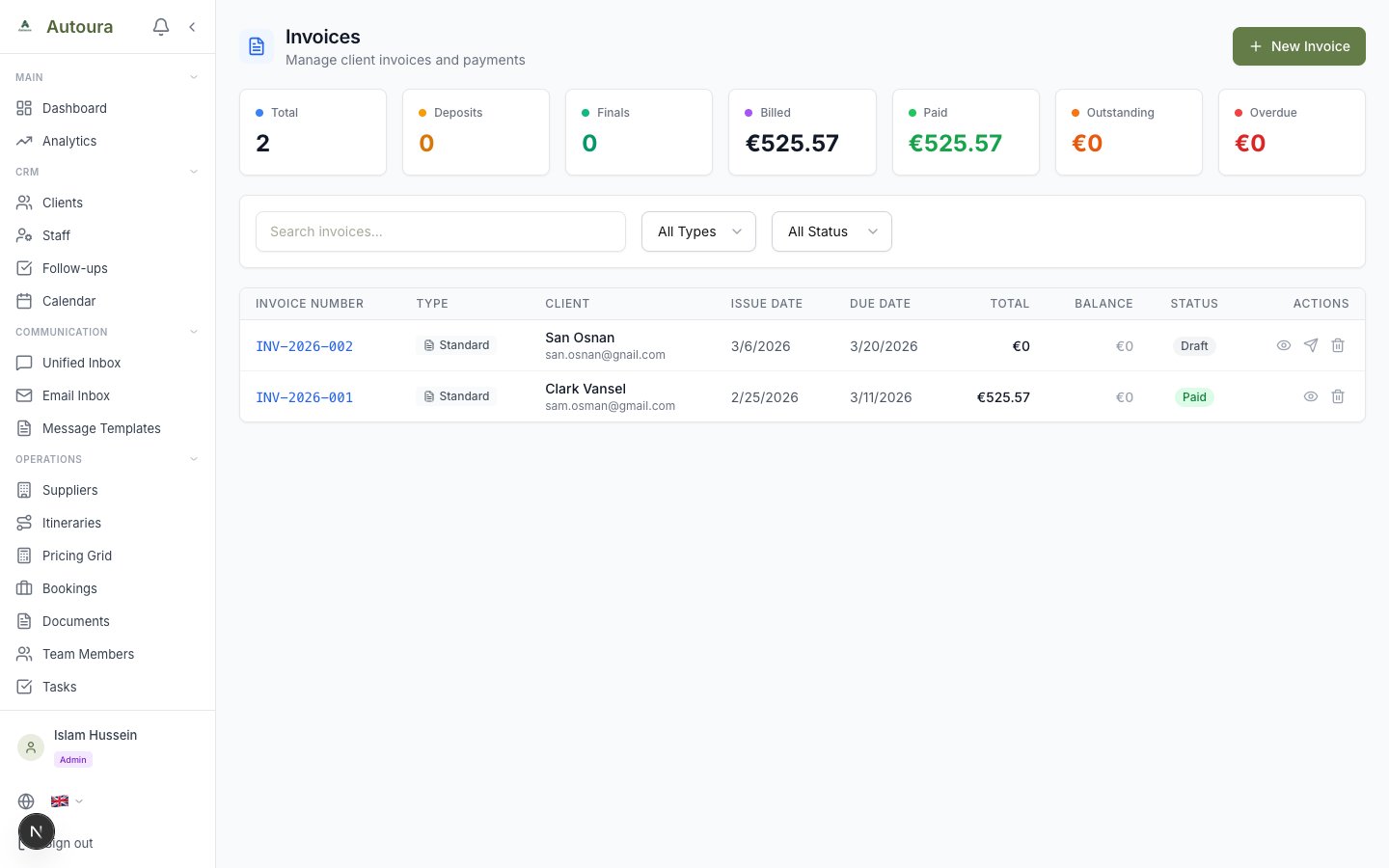
Invoices list page with summary cards, status filters, and invoice table
Creating an invoice
- From a trip — on the itinerary, Documents → Create invoice. It makes one line for the whole trip total, in the trip’s currency. The trip’s client is used, found by email or name — and added as a client if there is none. Once it exists, the same menu opens it.
- On the Invoices page — New Invoice: pick the client, link a trip if you like, add the lines, tax and discount. The currency starts as your agency’s. A total of 0 or less is refused.
A new invoice is a Draft until it is sent.
Standard, deposit and final
- Standard — the whole amount.
- Deposit — a share of the trip. The percentage starts from your deposit rule in Settings → Payment terms, and can be changed on the invoice.
- Final — the rest, created from the deposit invoice once the deposit is paid.
A deposit and its final invoice show a banner linking each to the other.
Statuses
- Draft, Sent and Cancelled are set by you.
- Part paid and Paid follow the payments: record one and the status moves; delete one and it moves back.
- An invoice with payments cannot be cancelled — delete the payments first.
The invoice page
The client, the lines, tax and discount, Amount Paid and Balance Due, the payments with their dates and methods — each with a receipt download and, for managers, Delete — and the Reminder History (see Follow-ups & Reminders).
| Action | What it does |
|---|---|
| Send via WhatsApp | Sends the invoice to the client on WhatsApp. A draft becomes Sent. |
| Download PDF | The invoice as a PDF, with your branding. |
| Mark as Sent | A draft becomes Sent (an invoice with payments keeps the status they give it). |
| Record Payment | Money received against the invoice. Not offered on a draft or a cancelled invoice. |
| Create Final Invoice | On a deposit invoice that is paid, and only once: the final invoice for the rest. |
Screenshot: Invoice page with lines, Amount Paid / Balance Due, payments and Reminder History
Recording a payment
- On the invoice, click Record Payment.
- Enter the amount, the date, the method (Bank Transfer, Tab, Credit Card, Cash, PayPal, Stripe or Other), and a reference or notes if you like.
- Click Record Payment.
Payments
Payments lists every payment in one place: those recorded on invoices and those recorded on trips. Each row shows the date, where it came from, the invoice or trip, the client, the amount, the method and the reference, and opens the invoice or the trip.
- Filter by source (invoice or trip payments) and by method; search.
- Total Received and This Month count completed payments only — not pending, failed or refunded ones.
- New Payment records a payment against an invoice or a trip (one or the other is needed).
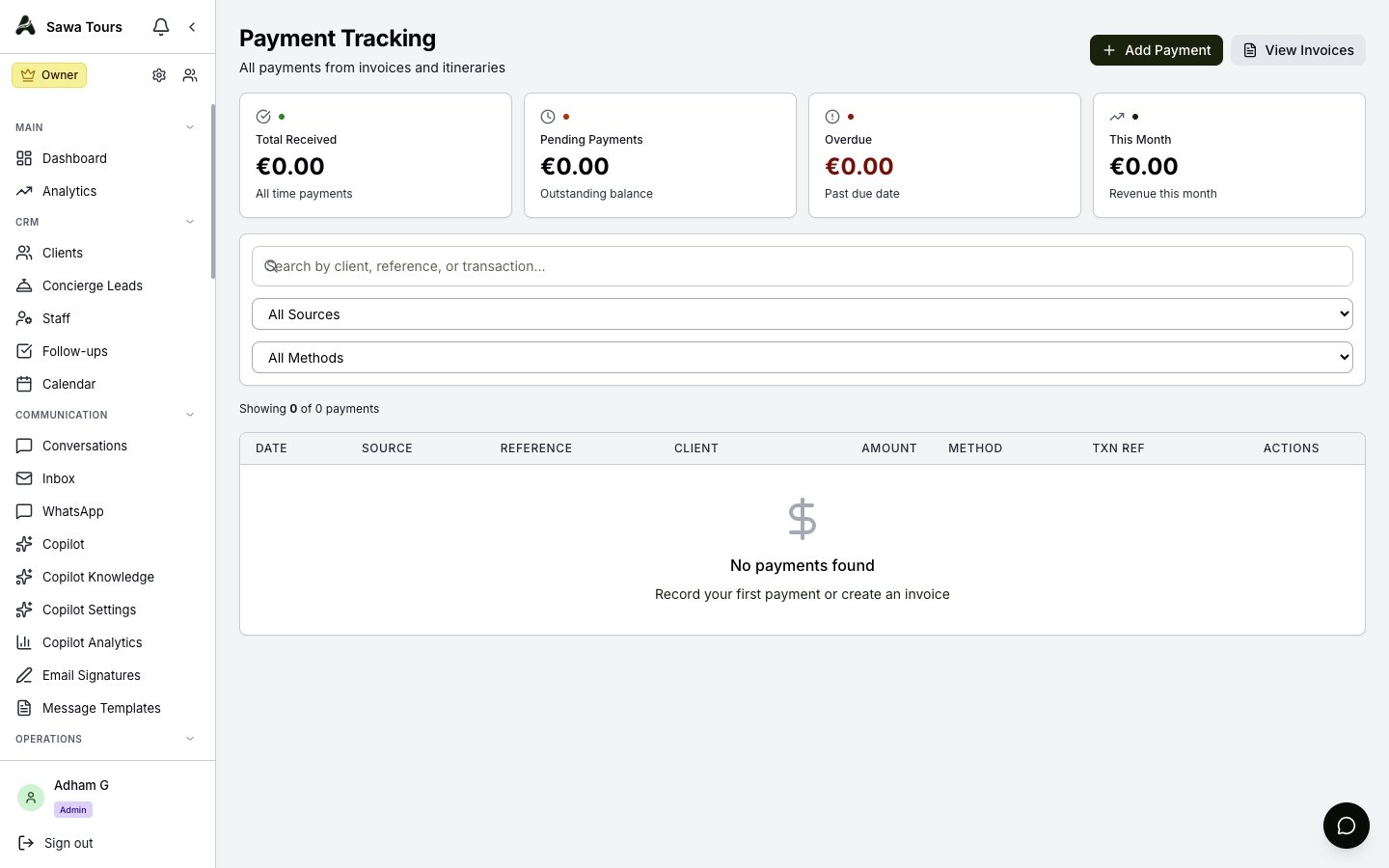
Payment Tracking page with unified invoice and itinerary payments, source and method filters
Receipts
Receipts lists a receipt for every invoice payment and every completed trip payment, with Total Receipts, Total Received and Received This Month. Download a receipt, or send it on WhatsApp when the client has a phone number. A receipt can also be downloaded from the invoice page.
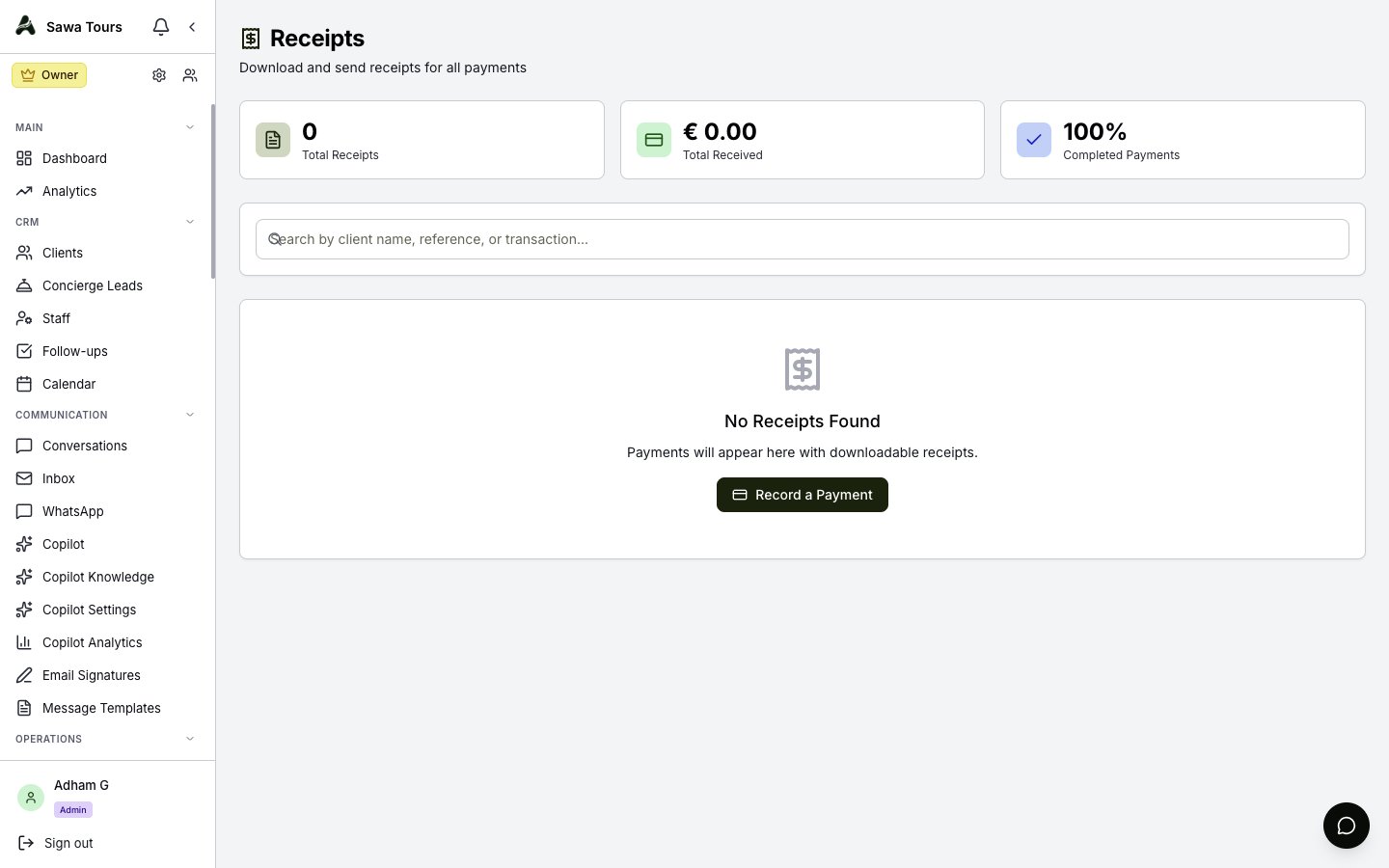
Receipts page with totals cards, search, and per-payment receipt downloads
Receivables
What clients owe: every sent invoice with a balance, grouped By Client or listed By Invoice. Drafts are not owed yet and are left out.
- Aged by days past the due date: Current (not due), 1-30 Days, 31-60 Days and Over 60 Days. An invoice with no due date is current.
- Filter by aging, search, and open a client to see their invoices.
- Send Reminder opens a reminder email in your own mail program (the app’s own reminders are on the Payment Reminders page).
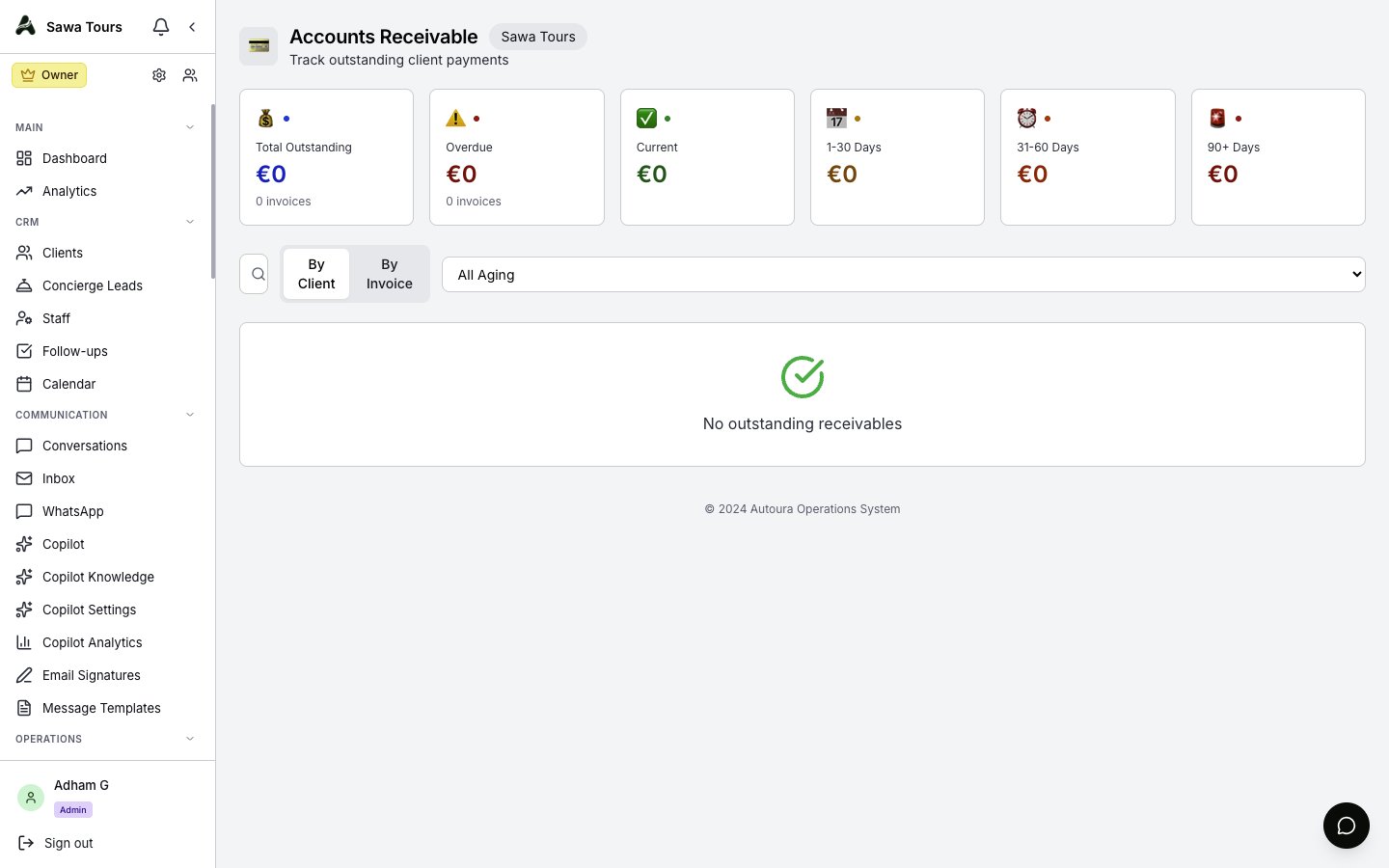
Accounts Receivable aging report with aging buckets
Payables
What you owe suppliers, read from your expenses that are pending or approved. A supplier invoice that no expense is linked to does not appear here — see the next section.
- An expense is due on its linked supplier invoice’s due date, or 14 days after the expense date when it has none. Aging counts days past that: Not due yet, 1-30, 31-60 and 60+ days overdue.
- Three views: By Supplier, By Expense and Payment History (the last 50 paid expenses).
- Filter by aging, supplier type and status (Pending Approval, Approved); search suppliers or expenses.
- Approve a pending expense, then Mark as Paid. Marking an expense paid here does not mark its supplier invoice paid — pay the supplier invoice on its own page, which pays its expenses too.
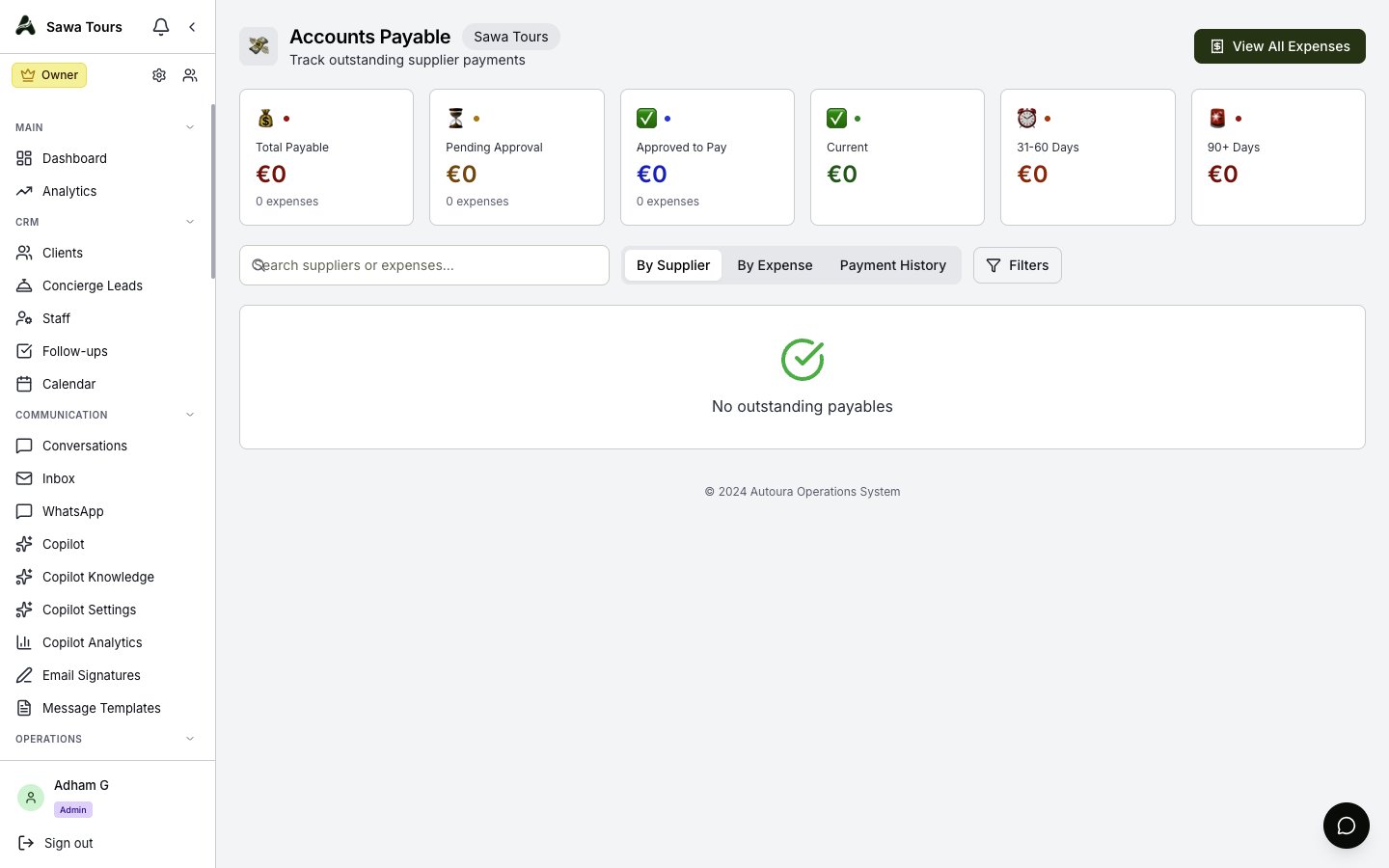
Accounts Payable aging report with supplier type and status filters
Supplier invoices
The bills your suppliers send you, matched against your expenses, approved and paid.
Adding one
- New Invoice, then either type the details or upload the bill (PDF, PNG, JPG, WebP or GIF, up to 20 MB) and AI fills in the supplier, number, dates, amount, tax and currency. Review them, then Create; the uploaded document is attached to the new invoice.
- A currency the AI cannot read is left for you to pick — it is never guessed. The form starts in your agency’s currency.
- The amount must be above 0; dates are checked.
Matching, approving, paying
- Link expenses — the expenses this bill covers. Only pending or approved expenses in the bill’s currency, and each expense on one bill only. When they add up to the bill (to the cent), it is Matched; otherwise the match is Partial or a Discrepancy.
- Approve — a matched bill, or a partial or mismatched one after you confirm. A bill with nothing linked cannot be approved.
- Mark paid — an approved bill, with an optional reference. Its linked expenses are marked paid with it; if they cannot be, the page says so.
Linking and unlinking are open while the bill is received or matched. Dispute a bill that is not yet paid; a disputed bill can be resolved (back to received) or cancelled. Any bill not yet paid can be cancelled.
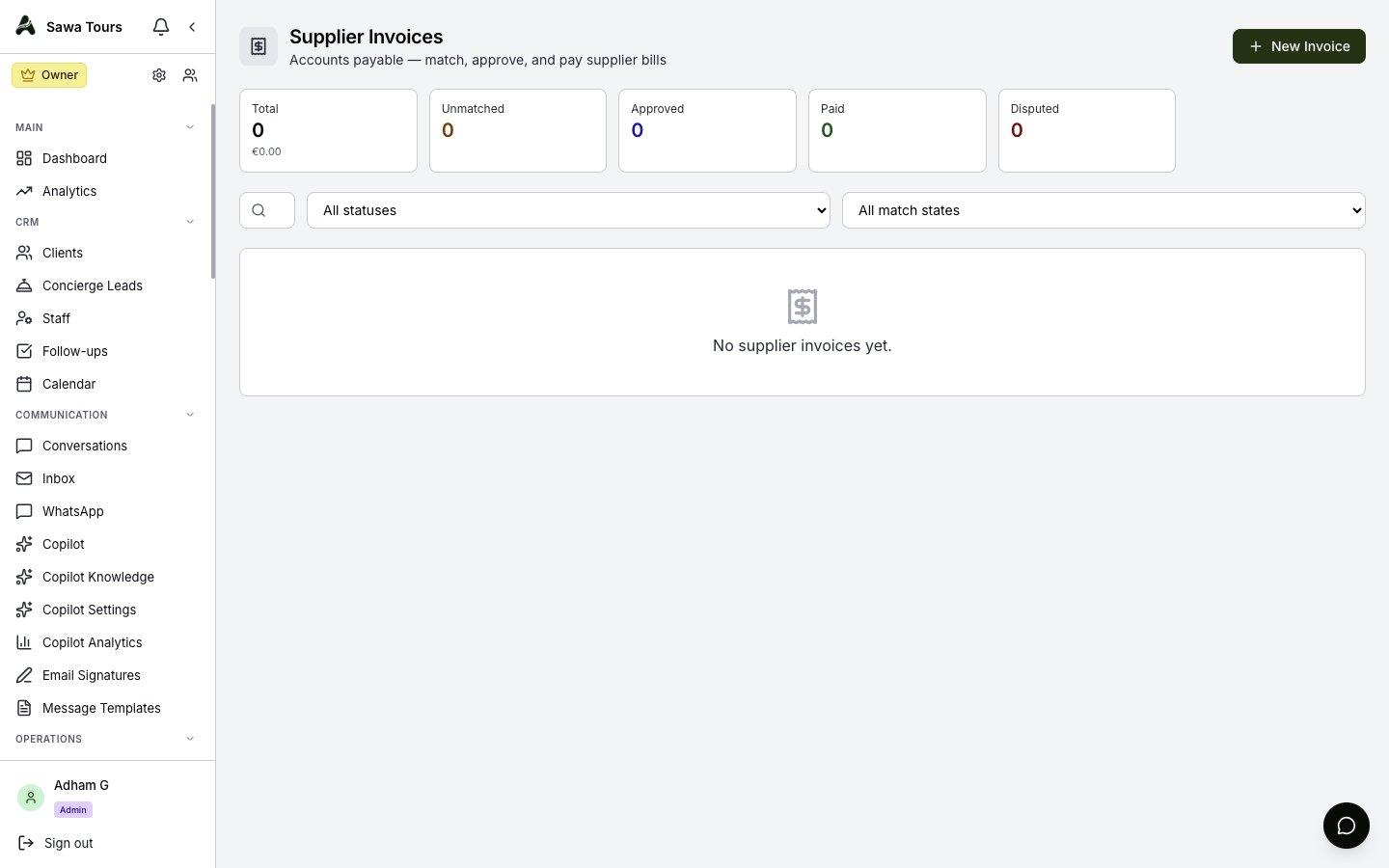
Supplier Invoices page with upload, AI extraction, statuses and match states