Itinerary Creation
Trips are built and priced in one place: the Quote Builder (Sell → Quote Builder). Paste a client's request, upload a file, or load an itinerary; the AI lays out the days, and every day is priced from your rates as you go.
Ways In
- Parse on a WhatsApp conversation, or the purple sparkles icon on an email in the Inbox — the Quote Builder opens and reads the conversation
- New Quote on the B2C or B2B Quotes page — opens it in that mode
- From a client's page — opens it for that client
- Price in Grid in the itinerary editor — opens that itinerary
- Quote Builder in the sidebar
The Trip Settings
The header holds the settings the whole trip is priced with:
- Pax — The number of travellers
- Start — The start date: hotels are priced from the rate period that covers it
- EU / Non-EU — Passport, for entrance fees (Non-EU to start)
- Tier — Your tiers (Budget, Standard, Deluxe, Luxury, or your own names); it picks the hotels and cruises offered
- Guide / No Guide — No Guide removes the guide and the guide's tips. Spot or Throughout +1 (one guide for the whole trip, with his bed, meals and flight seats), and the Guide language, which every day's guide follows.
- B2C / B2B (Pricing) — Switching resets the markup to 25% or 10%; in B2B, Select Partner… takes the partner's default margin
- Currency — Shows the prices in any of 12 currencies; the trip is saved in your rates' currency
- Markup % — Your margin on cost
Below it, Client & Trip Details hold the tour name and the client's name, email, phone and nationality, with a CRM client tag when the trip is linked to a client.
Starting the Days
First choose the Package Type — Day Trips, Tours Only, Land Package, Full Package, Cruise + Land, or Shore Excursions — so the AI knows what the client is buying. Then:
- Paste Text — Paste the request and click Parse & Generate Quote. A vague request gets an AI-suggested trip, marked so, for you to review.
- Upload — A PDF, an image (PNG, JPG, WebP) or a Word file (.docx), up to 32 MB; click Extract & Generate Quote
- Load / Build — Load a saved itinerary by its ID, add a day, or start a Day from block — one of your saved day blocks
The AI fills in the days and their cities, the travellers, start date, nationality, tour name and client name. It reads WhatsApp messages, emails, day-by-day plans, PDFs and photos, and the common travel shorthand.
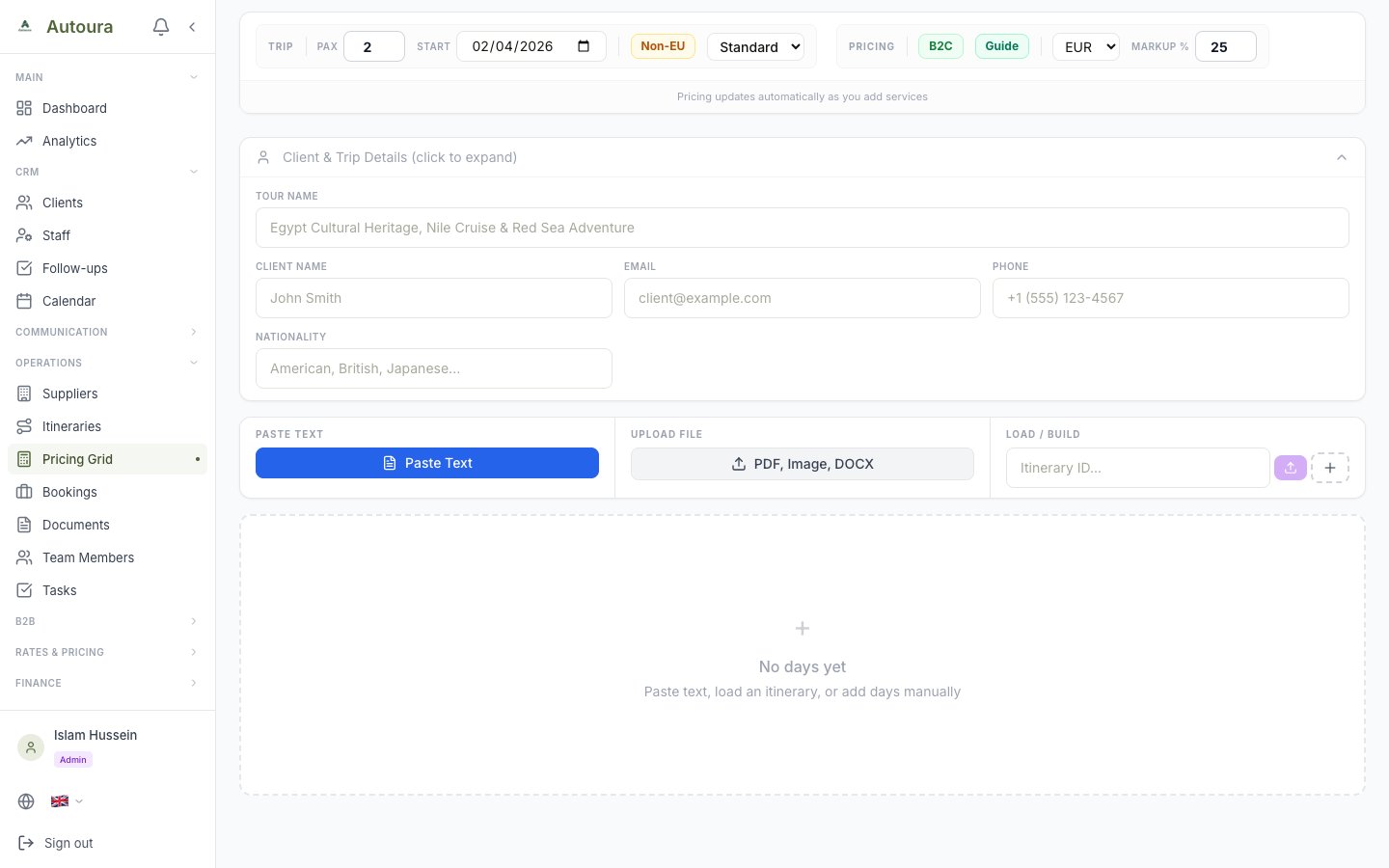
The Quote Builder with its settings header and the Paste Text, Upload and Load / Build inputs
The Days and Their Services
Each day has fifteen services:
- For the group — Transport, Guide, Airport services, Hotel services, Tipping, Boat rides, Other (Group)
- Per person — Accommodation, Entrance fees, Flights, Experiences, Meals, Water, Nile cruise, Other (PP)
Empty services are hidden: Add service brings one in, Show all services shows them all. Pick a rate from the list (filtered to the day's city), or remove it; Other (Group) and Other (PP) take a typed amount. Picking a hotel adds its meals by its board basis.
Each day has a type — arrival, sightseeing, travel, cruise, free or departure — and can be saved as a day block to reuse. Expand All / Collapse All and the day bar move you around the trip.
Writing the Days
Each day's title and description are what the client reads in the itinerary, the share page and the PDF. Write descriptions (above the days) writes them from what each day includes and your Content Library, in your Writing Rules:
- It writes only the days with no description, so your own words stay. A title you chose is kept; “Day 3” or just the city is replaced.
- Rewrite from library under a day's description writes that day again, after asking.
- After Parse, the days carry the parser's brief descriptions, and you are offered to write them all from your library instead.
- Under each written day, From your library names the entries it used. Anything picked that your library has no entry for is listed above the days, to add to the Content Library.
- The text never mentions prices, and only describes what the day includes. Edit it freely; Save stores it. Each run counts as one AI generation.
The Price
Once something is priced, the Live Quote strip shows Cost/PP, Total Cost, the Margin, Sell/PP and Sell Total, and the bar at the bottom repeats them beside the save button. How the price is built: B2C Pricing.
Saving
Save as Itinerary (B2C) or Save as B2B Quote saves the trip as an itinerary (code ITN-S-2026-…) with its days and services. When you save:
- Every service is priced from your rates as they are now. If a rate changed since you picked it, the trip is saved at today's rate and you are told which; a line whose rate is gone keeps its price, and you are told that too.
- In B2C, the client is linked or added to your clients as a Lead, and a B2C quote is made — or the itinerary's open quote is repriced
- In B2B, the B2B quote and a tour template are made and the B2B Calculator opens (see Converting Itineraries to B2B)
Afterwards the button reads Update itinerary & quote (with the price change) or Update B2B Quote, and links such as View Itinerary and View quote take you there.